
Groups
Groups bring users, applications, integrations, and machines together. Use them to give teams access to specific automation tasks and certificate templates, share application integrations, and target PowerShell module synchronization to a pool of machines.
How groups work
A group is a collection of users, applications, integrations, and machines with a shared purpose. It might represent a team, a project, an environment, or machines that need the same PowerShell modules. You can use the membership types you need; a group does not have to contain all four.
Groups let you maintain membership in one place and use it across features. For example, grant a support team's group access to a particular automation task, allow an application team to order certificates from an approved template, or assign a module to a group of machines. Application secret delivery is another use: applications can use integrations linked to their groups.
| Item | What it does |
|---|---|
| Users | Belong to the group as owners, members, or viewers. They can receive access to tasks and certificate templates through permissions assigned to the group. |
| Applications | Can belong to several groups and use the enabled integrations available through those memberships. |
| Integrations | Connections linked to the group, such as AWS, Vercel, or GitHub. Applications in the group can select them for supported operations such as secret delivery. |
| Machines | Registered agents pooled in the group. A PowerShell module can target the group so its machines receive the assigned module and version policy. |
Membership and ownership have different purposes
A person's group role controls whether they can maintain the group. Permissions assigned to that group on a task or certificate template control what its users can do with that resource. These are separate settings: a group owner does not automatically own every task, template, or application associated with the group.
Groups belong to AZExecute; creating one does not create a Microsoft Entra ID group.
Plan your groups
Start with the purpose: which people need the same resource access, which applications should share connections, or which machines need the same modules? Use separate groups when those memberships need to change independently. You do not need a separate group for every application or provider.
| Situation | Suggested organization | Why |
|---|---|---|
| A team needs selected tasks and certificate workflows | A team group with access assigned on the relevant tasks and templates. | Give users the required capabilities while keeping their tenant role as User. |
| A pool of machines needs the same PowerShell modules | A machine group used as a module sync target. | Manage module assignments and version policies for the pool instead of repeating assignments for every agent. |
| Several applications use the same provider account | One project group with the shared integration. | Set up the connection once and add applications as the project grows. |
| Development and production use different accounts | Separate groups, such as Customer portal — Development and Customer portal — Production. | Make the intended connections available to the applications in each environment. |
| A project uses AWS, Vercel, and GitHub | Link all three integrations to the project group when its applications should have access to them. | Keep related connections together while configuring delivery separately for each application and provider. |
An application can belong to several groups and receives the available connections from all of them. If you separate development and production, check that applications are members of the intended groups. A group name or type does not enforce that separation by itself.
Use names and descriptions that explain the group's purpose, environment, and who maintains it. Review existing resource grants before adding people, integrations before adding applications, and module assignments before adding machines. New members can receive the access or assignments already associated with the group.
Before you start
- You can create a group without being a tenant administrator. To use an existing group, you need its Owner role to change membership or integration links.
- You must own each application you want to add or remove.
- Creating AWS, Vercel, or GitHub integrations requires your tenant's Integrations feature and the provider permissions requested by its setup guide.
- Assigning access to a task or certificate template requires permission to manage access on that resource. Group ownership alone does not grant it.
- Machine membership is managed by tenant administrators. Module assignments require access to PowerShell module management.
Start from My groups to create a group and manage people or applications. Configure task and certificate permissions on those resources, and module sync targets in PowerShell module management. For a new application integration, you can also start from the application's Secrets tab.
Create and manage groups
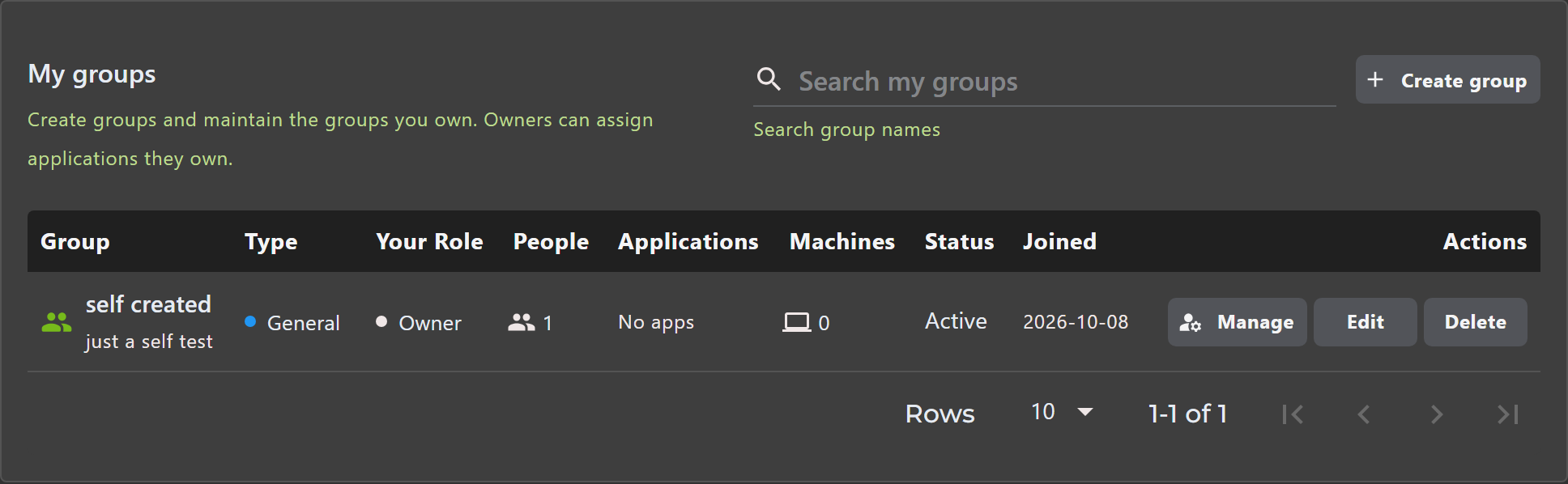
Open the Personal settings cog beside the notification bell, then select My groups. It lists the groups you own or belong to, including inactive groups you own.
My groups is your view of these memberships. A group you create can be shared with other people; it is not a separate private group type. Search by name and check your role to see which groups you can maintain.
Only owners see Manage, Edit, and Delete.
Create a group
- In My groups, select Create group.
- Enter a name and description. Optionally choose a type, icon, and color.
- Keep the group active and save. You become its owner.
The group is ready for membership and assignments. Use Manage to add people, applications, or integration links. Task access, certificate template access, and module sync targets are configured in their respective features.
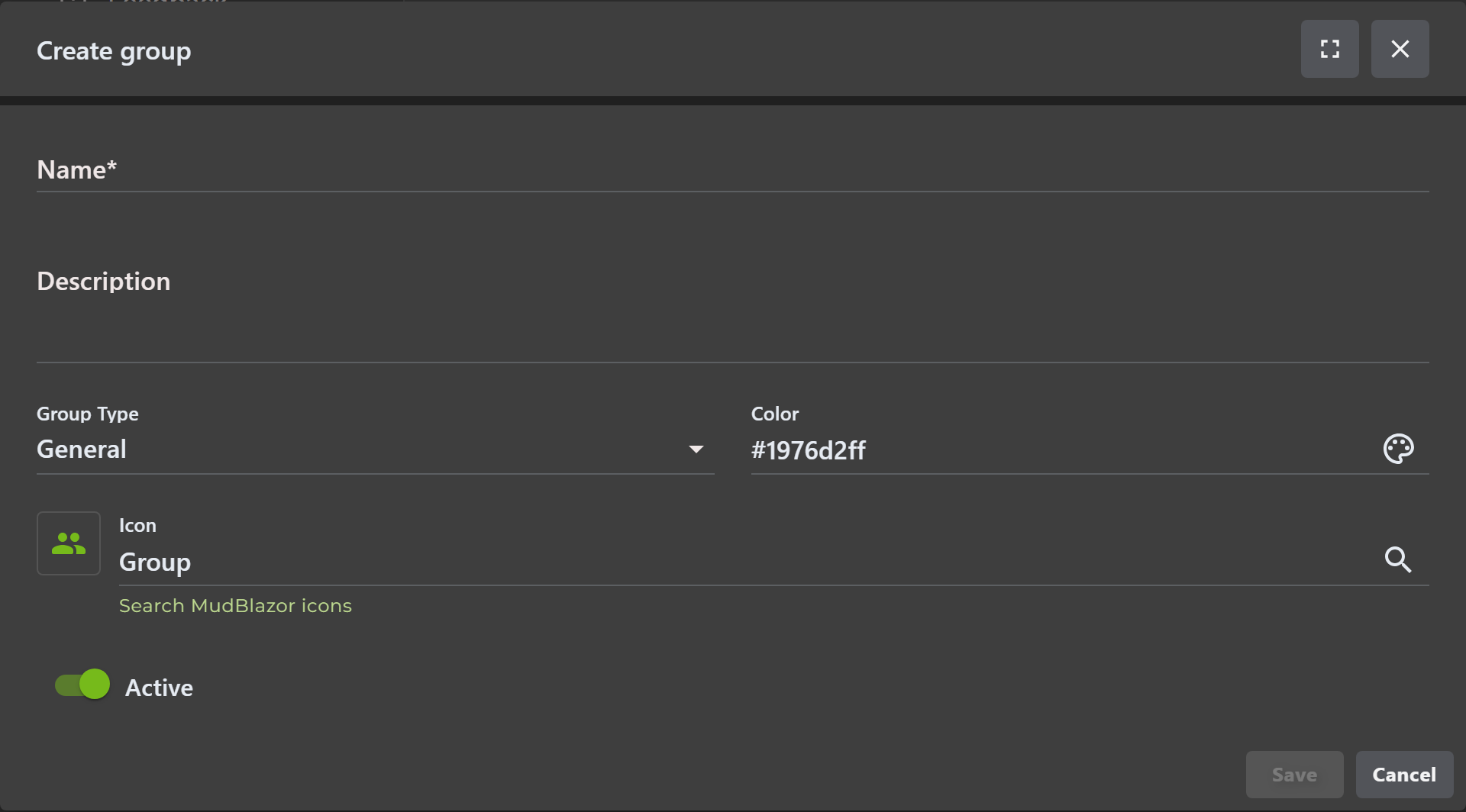
Use Edit to change these details later. The group type is a label; it does not change permissions or limit integration providers.
Manage people and ownership
Add people who need to participate in the group, and give the Owner role to those responsible for maintaining it. These roles apply to the group; application ownership and provider permissions are managed separately.
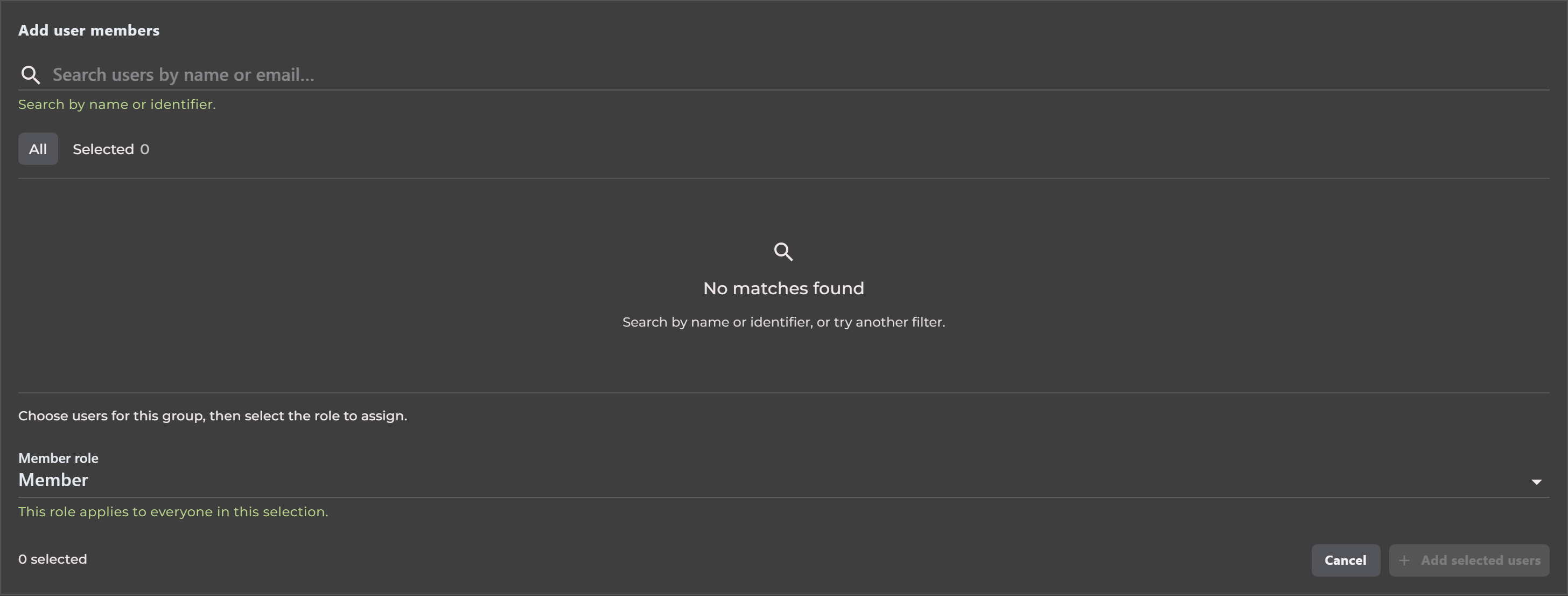
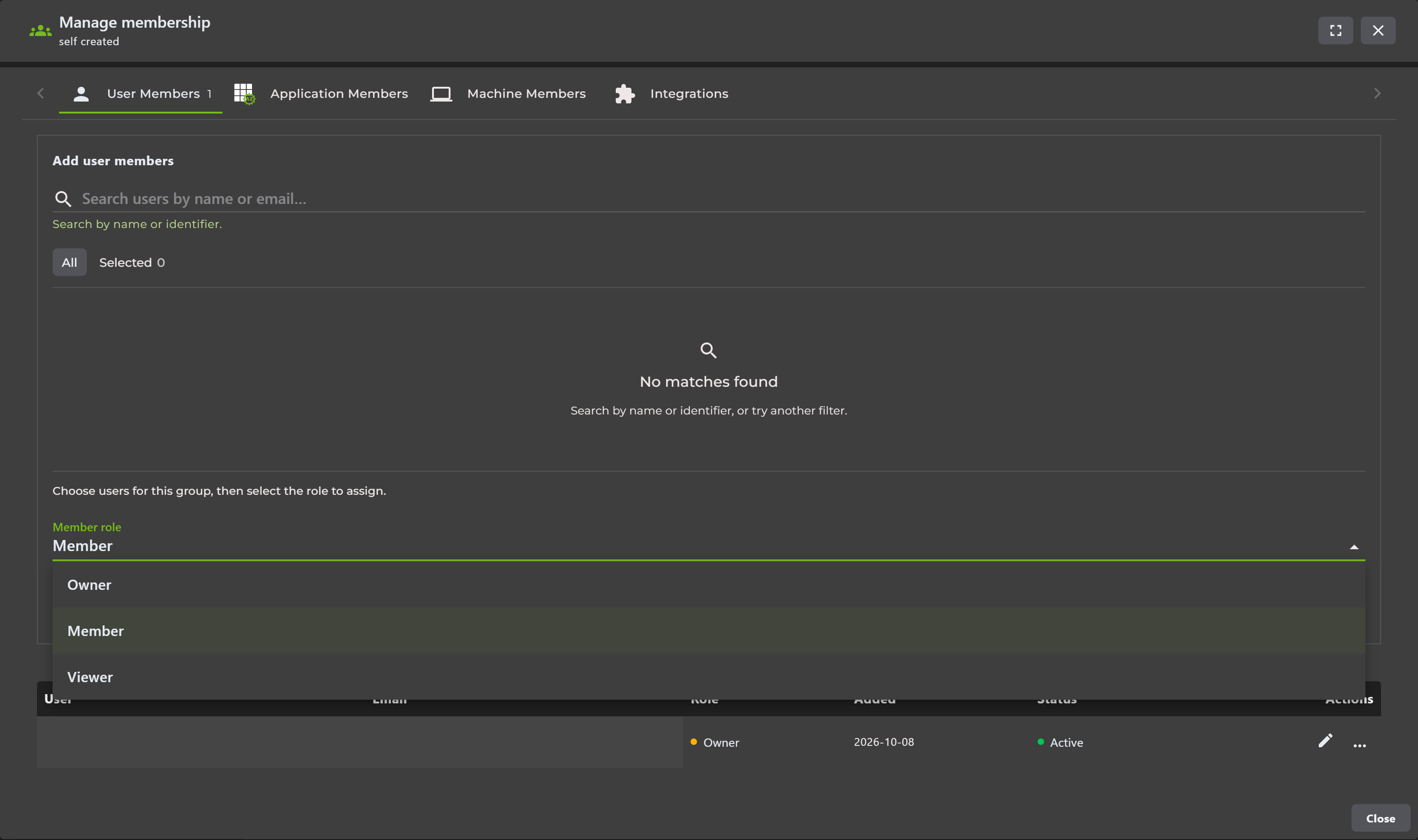
- Select Manage beside a group you own, then open User Members.
- Select Add Members and search for people in your tenant by name or email.
- Select people, choose their role, and select Add selected users.
- To update a member, change their role or select Remove in their row.
| Group role | Group management |
|---|---|
| Owner | Manages the group, people, integration links, and applications they also own. |
| Member or Viewer | Sees the group in My groups. Cannot edit it or change membership. |
Keep at least one active owner. Add another before removing or changing the last owner's role.
Group roles do not grant application ownership, tenant administrator rights, or provider permissions. Members and viewers can still receive task and certificate permissions assigned to the group; they do not need to be group owners to use that access.
Give users access to specific tasks and certificates
A normal User may need to run a particular automation task or order a certificate without managing operations across the tenant. Grant the group access to the task or certificate template, then maintain the people who need that access through group membership.
Automation tasks
Someone authorized to manage a task's access can assign the group Viewer, User, Editor, or Owner access. User access allows task use where execution is permitted; higher levels allow configuration changes or access management. For example, give a support group User access to an approved maintenance task so its members can run that task without becoming Operators.
Users with this access open the task from Operations → Automation and see the actions their access level permits. Published self-service tasks remain a separate way to make tasks available. See Publishing and direct task access for details.
Certificate templates and ACME ordering
An authorized template maintainer can add the group on the template's Access tab and choose an access level. User access lets members order or renew certificates and download certificate files according to the template's configuration. Viewer access is read-only; Editor and Owner access provide additional management capabilities.
For example, share an approved ACME template with an application team so its users can order certificates for that workflow while retaining their normal User role. They can open the Certificates area and see the templates available to them. See Certificate template access for setup and permissions.
Keep membership aligned with responsibility
Choose the resource access level people need, then review membership when they join or leave the team. Removing a person from one group does not necessarily remove all access: another group, a direct grant, or their tenant role may still provide it. Because group owners manage membership, give that role to people trusted to maintain the access represented by the group.
Pool machines for PowerShell module sync
Machine membership lets a group represent agents that need the same PowerShell modules, such as a pool of automation workers. Assign modules to the group to maintain a common module set without configuring each machine individually.
- Have a tenant administrator add the relevant registered machines through the group's Machine Members tab.
- In PowerShell module management, open Manage targets for the module and select the group.
- Choose the assignment's version policy: a pinned version or the latest version, then save.
- Agents pick up their assignments during the next sync cycle. Check module sync status and agent logs to confirm the expected version is installed.
The group identifies the target machines; the module assignment determines what they receive. Creating a group alone does not synchronize modules. Review direct and other group assignments when changing the pool. See PowerShell modules for version policies, synchronization, and troubleshooting.
Add applications to a group
To add or remove an application, you must own both the application and the group.
Adding an application makes the group's enabled integrations available to it. Existing delivery settings stay as they are until you change them in the application's provider tabs.
From My groups
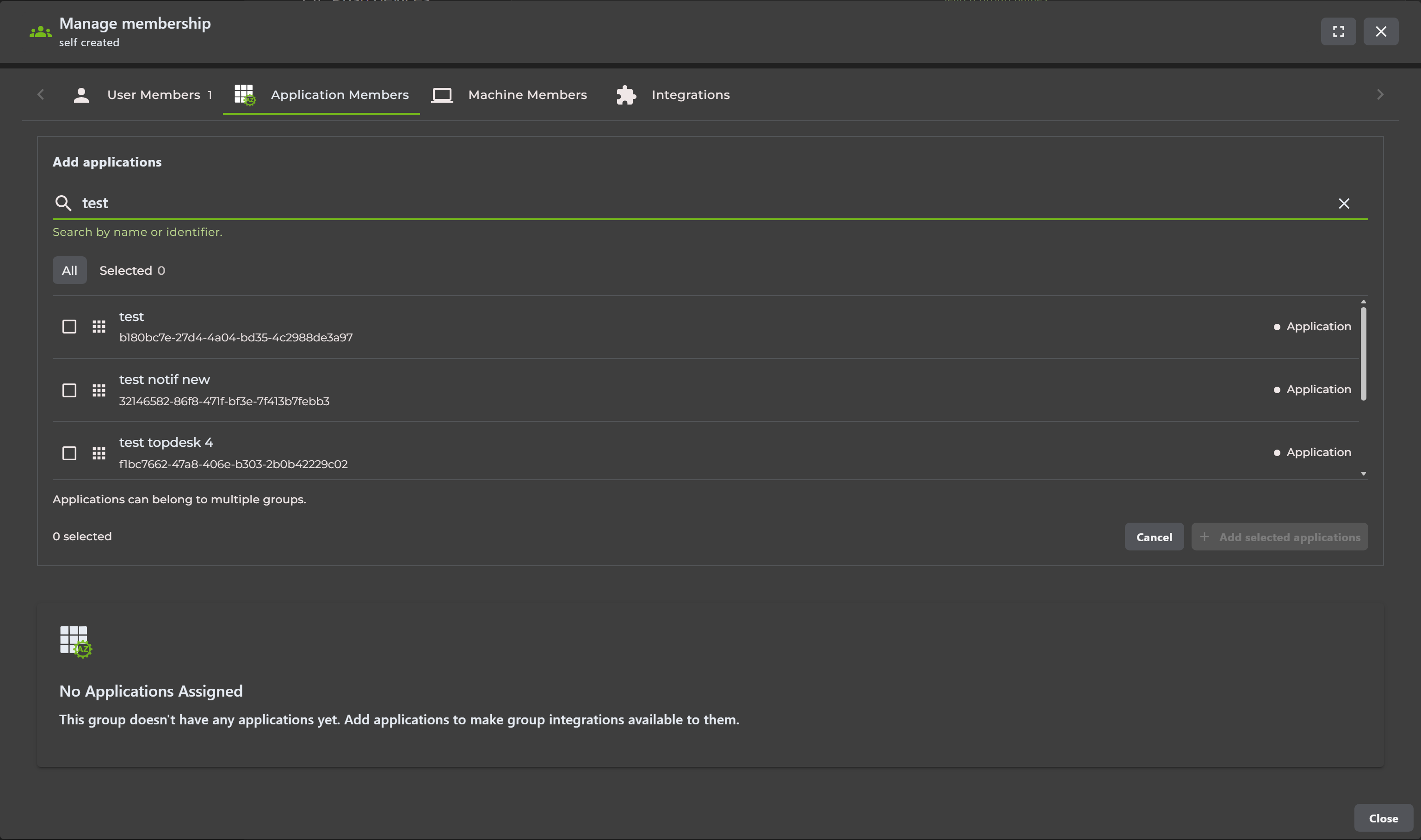
- Open Manage → Application Members for your group.
- Select Add Applications, search for applications you own, and select the ones to include.
- Select Add selected applications. Use a row's Remove action to remove a membership later.
From an application's General tab
- Open the application and find the Groups section on General.
- Select Add to group. Choose an existing group you own, or choose New group.
- For a new group, the name defaults to the application's display name. Adjust it if needed and select Create group.
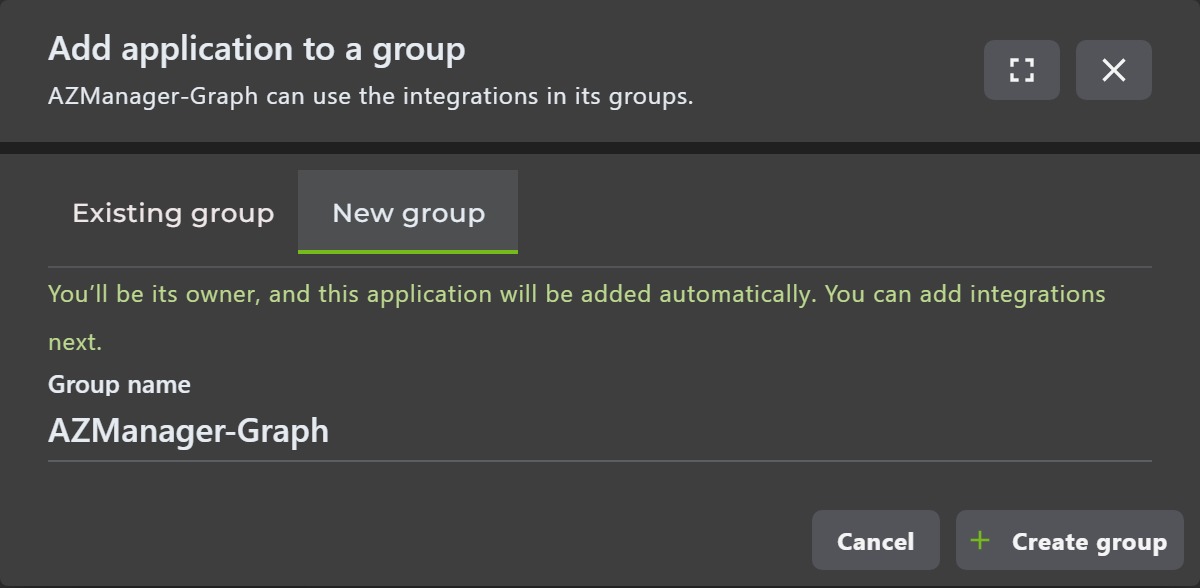

After adding the application, check General → Groups for its membership and linked providers. Use Manage integrations to update an owned group's connections. If you created a group here, you become its owner and the application is added automatically.
Connect AWS, Vercel, or GitHub
Secret delivery is one use of groups and integrations. The integration stores the provider connection, while each application chooses whether to deliver its renewed secret and which destination to use.
For example, a portal website and background service can belong to the same group and share one AWS connection. Each application selects its own AWS secret destination. You configure the connection once and maintain delivery separately for each application.
Group owners can create AWS, Vercel, and GitHub.com integrations. Your tenant needs the Integrations feature, and you need permission to complete setup in the provider. Other providers, GitHub Enterprise Server, and machine membership require a tenant administrator.
Start from your application
- Open Secrets and select AWS, Vercel, or GitHub.
- Select an available integration, or select Add integration to create one.
- For a new integration, choose or create a group you own, then follow the provider's setup guide and verify the connection.
- Under Secret delivery, enable delivery, choose the destination, and select Save Changes.
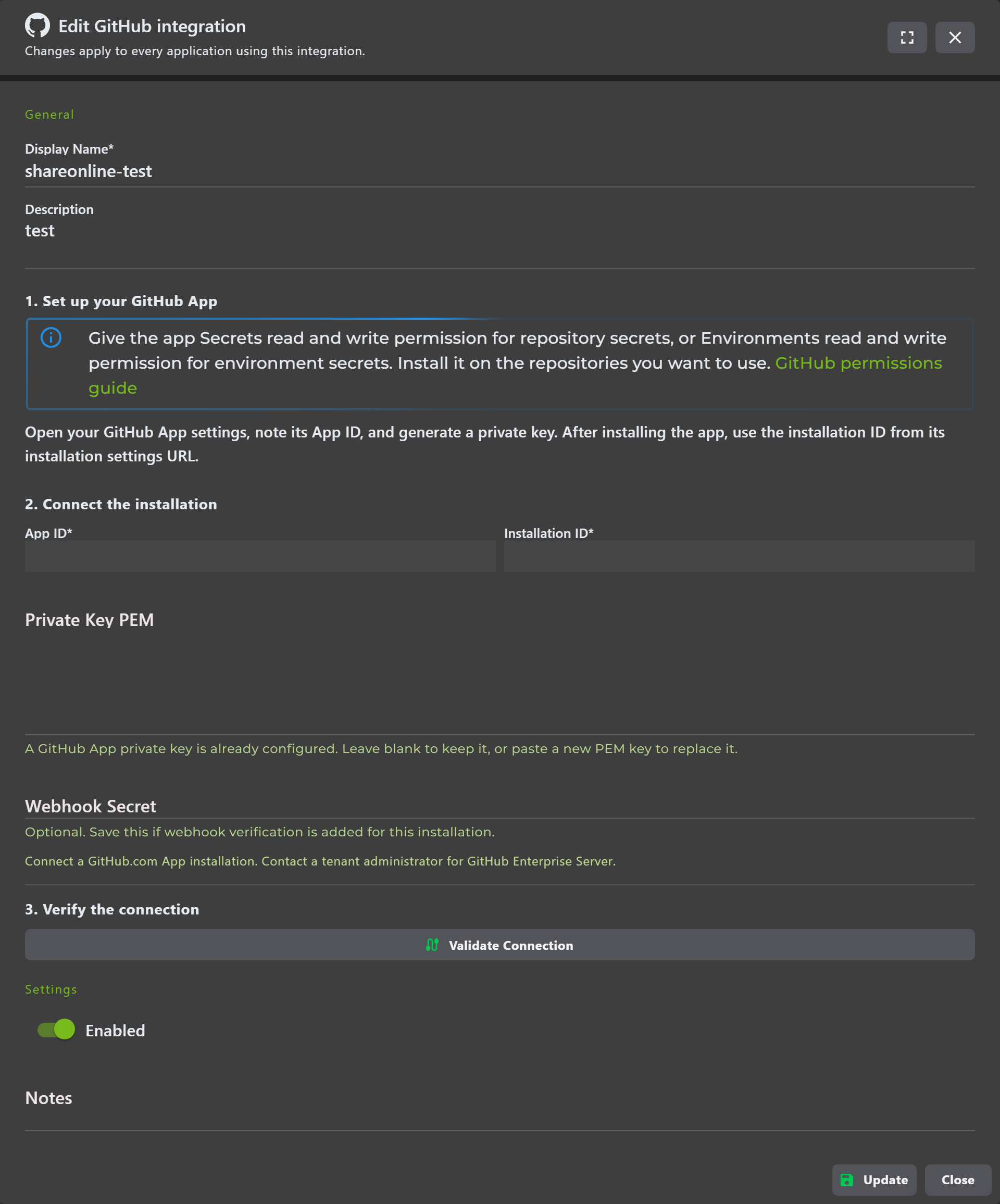
The setup guide handles the provider connection: AWS guides identity provider and IAM role setup, Vercel guides team and token setup, and GitHub guides App installation and credentials. When saved, the new integration appears in the application's list. Add integration remains available if you need another connection.
Continuing past the group step saves membership, even if you cancel provider setup. See Integration setup for provider requirements and destination settings.
Start from My groups
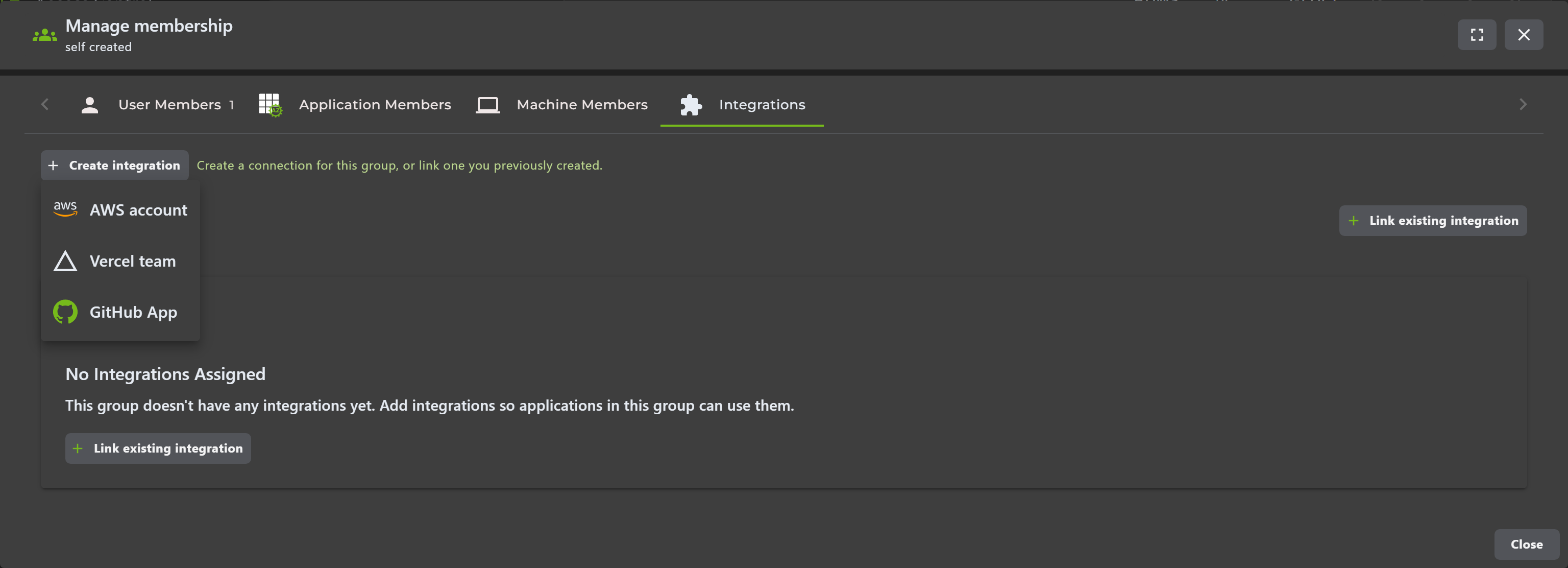
Open Manage → Integrations for a group you own. Create a connection, or use Link existing integration to reuse an enabled integration you created through a group.
Linking reuses the saved connection rather than creating a copy. Changes to it therefore affect applications using it through any linked group. Applications in this group can now select it, but delivery still needs to be configured in each application.
Reuse and edit connections
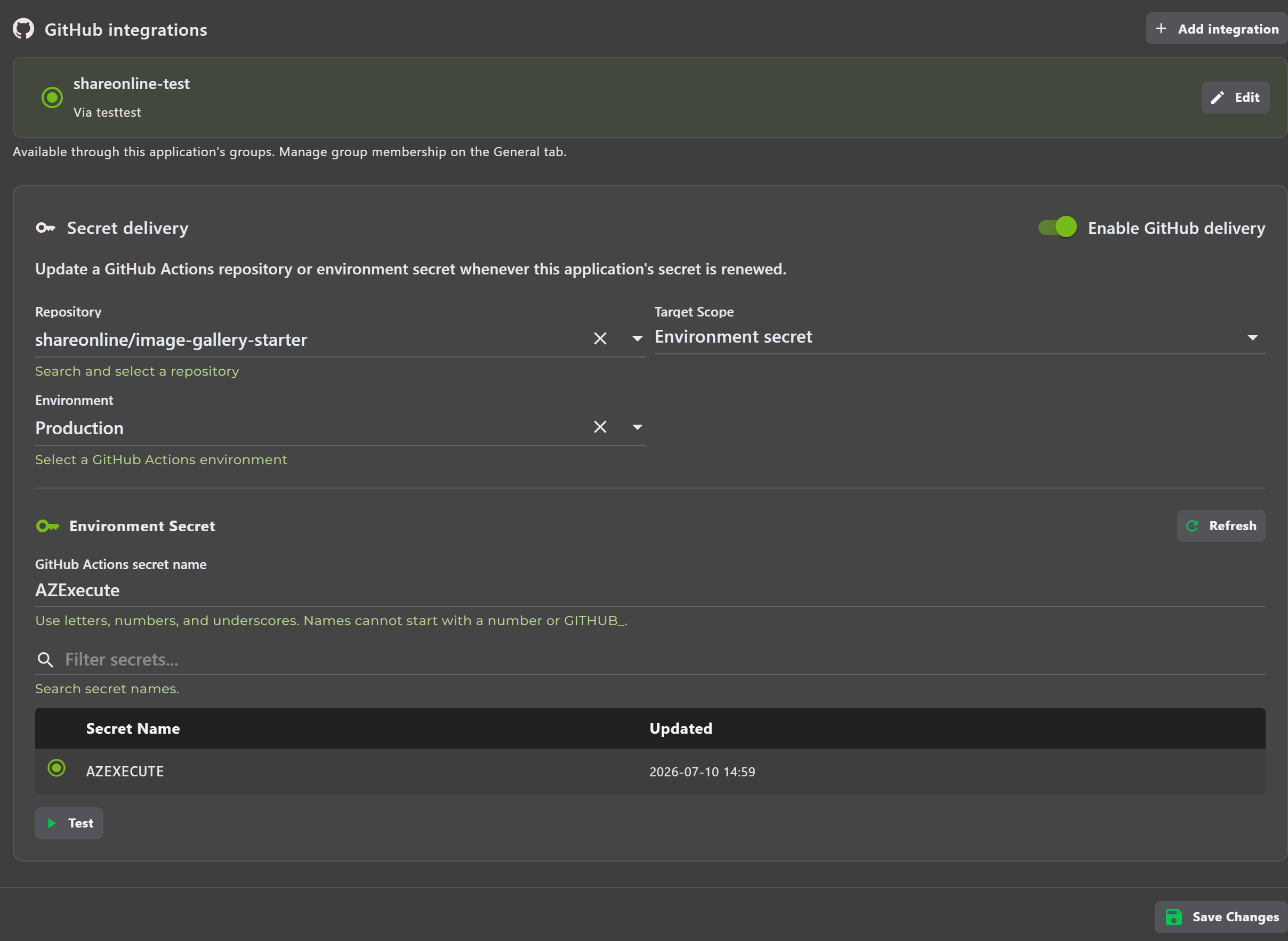
Each integration is listed once with the groups that provide it. Disabled integrations cannot be selected.
To Edit a group-created integration, you must have created it and own a linked group. Otherwise, ask its creator or a tenant administrator. Older application-created connections have separate editing permissions.
Leave a secret field blank to keep its saved value, or enter and verify a replacement. To change the AWS account, Vercel team, or GitHub App installation, create a new integration.
Confirm setup is complete
Check that the group appears on General → Groups, the connection is available in the provider tab, and delivery is enabled with the intended destination and saved changes. After the next planned rotation, check the application log and provider destination to confirm delivery. Creating or verifying a connection alone does not rotate the application's secret.
Remove access or retire a group
Before changing or retiring a group, review its task and certificate grants, module sync targets, and application integrations. Arrange replacement access or assignments where needed. For application integrations, choose a replacement connection or turn off delivery before removing access.
| Change | Effect |
|---|---|
| Remove a user | The user loses resource access provided by that membership. Other group grants, direct grants, or tenant roles may still allow access. |
| Remove a machine | The group no longer targets that machine for module sync. Review its other module assignments and the next sync result. |
| Remove an application | The application stays in AZExecute but loses the access provided by this membership. |
| Unlink an integration | The integration remains saved, but this group no longer provides it to applications. Links to other groups remain. |
| Make the group inactive | The group stops providing resource and integration access and no longer contributes machine module assignments. Owners can still find it in My groups and maintain it. |
| Delete the group | Removes the group and the access it provides. Review the confirmation before proceeding. |
An application may still have access to the same integration through another active group. Once its last group link providing access is removed, saved delivery settings do not preserve that access.
Use Edit to make a group inactive, or Delete to remove it. You must own every linked application. Ask a tenant administrator if the group contains machines, other integration providers, or was created for the older direct application-integration setup.
Before an owner leaves, add a replacement. Ask a tenant administrator to review integration access; adding a group owner does not transfer credential editing permissions.
When something is missing
| What you see | What to check |
|---|---|
| No Manage button in My groups | Your role must be Owner. Ask an existing owner to maintain the group or assign ownership. |
| A member cannot use a task or order a certificate | Check the group's access on the task or template. Membership alone is not enough; the resource must grant an access level that permits the action. |
| No Machine Members tab | Machine membership requires a tenant administrator. |
| A machine does not receive a module | Check machine membership, the module's group target and version policy, then review the agent's sync status and logs. |
| An application is missing from Add Applications | You must own that application as well as the group. Check the current tenant and whether it is already a member. |
| A group is missing from Add to group | Choose an active group you own. Groups reserved for the older direct integration setup are excluded. |
| No AWS, Vercel, or GitHub integrations available | On General, check the application's groups. Link or create that provider's integration in an owned group, or use Add integration on the provider tab. |
| An integration cannot be selected | It may be disabled. Its authorized editor or a tenant administrator can review it. |
| No Edit action for a connection | Using a shared connection does not grant credential editing. Ask its creator and group owner, or a tenant administrator. |
| Link existing integration is empty | Only enabled integrations you created through a group are listed. |
| Setup verification fails | Check the account, credentials, and permissions required by the provider's setup guide. |
| A connection is listed but no secrets are delivered | Availability alone does not enable delivery. Check Enable delivery, the destination, saved changes, rotation settings, and the application log. |
| Group deletion or deactivation is refused | Check ownership of all linked applications and whether administrator-managed resources are linked. Ask a tenant administrator to review those dependencies. |
Next: configure secret delivery, manage application owners, or review tenant roles and access.