
PowerShell Modules
PowerShell Modules let you manage reusable PowerShell dependencies centrally in AZExecute and synchronize them to AZExecute agents before scripts run. Use modules when multiple scripts need the same functions, cmdlets, classes, DSC resources, or third-party tooling.
What PowerShell Modules Solve
Stored Scripts are the automation logic that AZExecute executes. PowerShell Modules are the reusable dependency layer those scripts can import. This keeps common PowerShell code out of individual scripts and gives operators one place to manage dependency versions.
• Use Stored Scripts for task-specific execution logic.
• Use PowerShell Modules for shared functions, reusable cmdlets, SDKs, helper libraries, and packaged script modules.
• Assign modules to the agents or agent groups that need them. Do not install modules globally on every server unless every server genuinely needs them.
• Keep module versions explicit when stability matters, and enable latest-version sync only when you want agents to follow updates automatically.
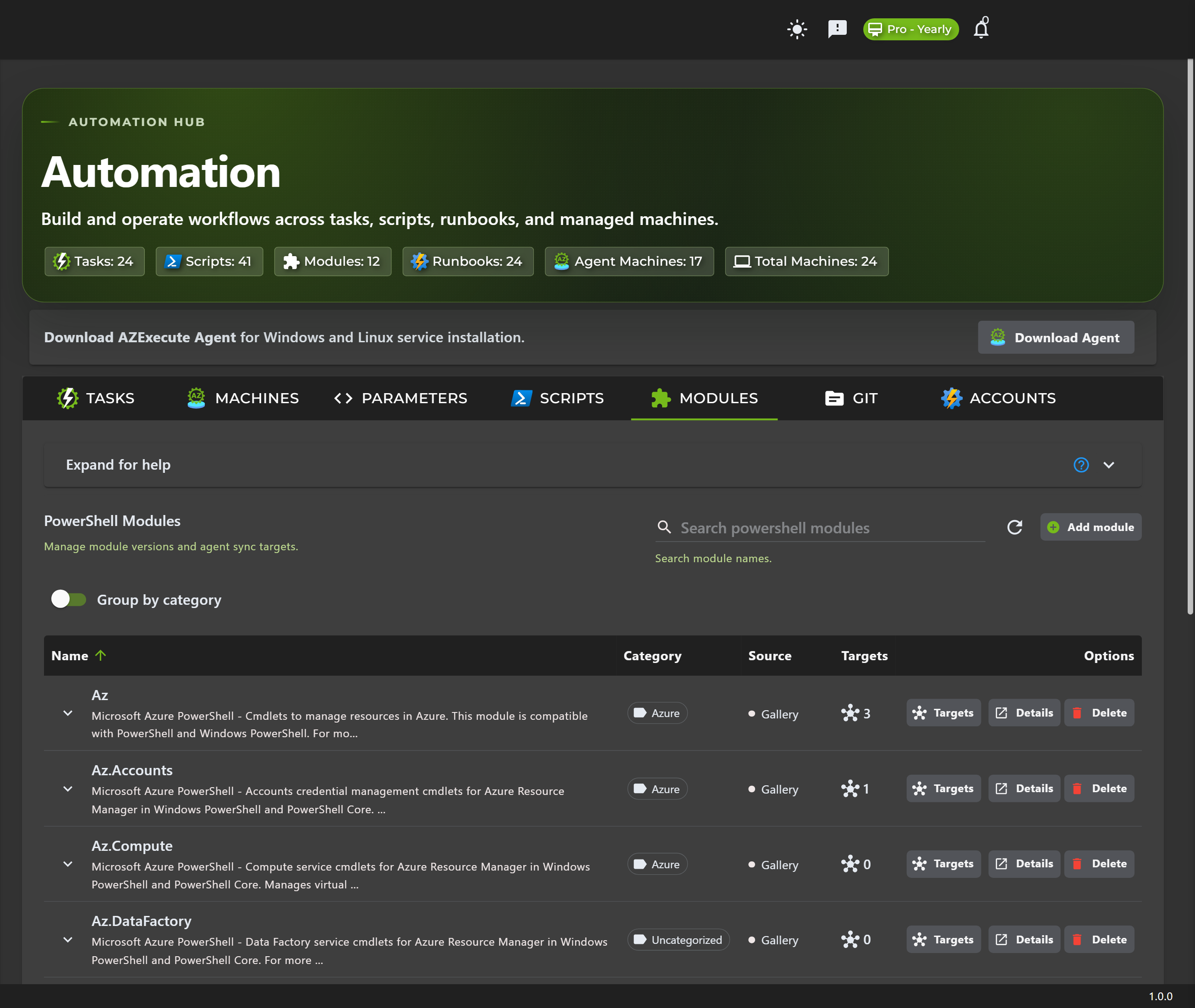
Module Sources
AZExecute supports two module source types. Both are managed in the same Modules page, but they are created and updated differently.
PowerShell Gallery modules:
Search PowerShell Gallery from the add-module dialog, select the module, and choose the version policy. Gallery packages are resolved by name and version when the agent synchronizes.
Custom modules:
Upload a ZIP or compatible package containing your module files. Custom modules are stored as tenant-owned versions and downloaded directly by assigned agents.
Create a Gallery Module
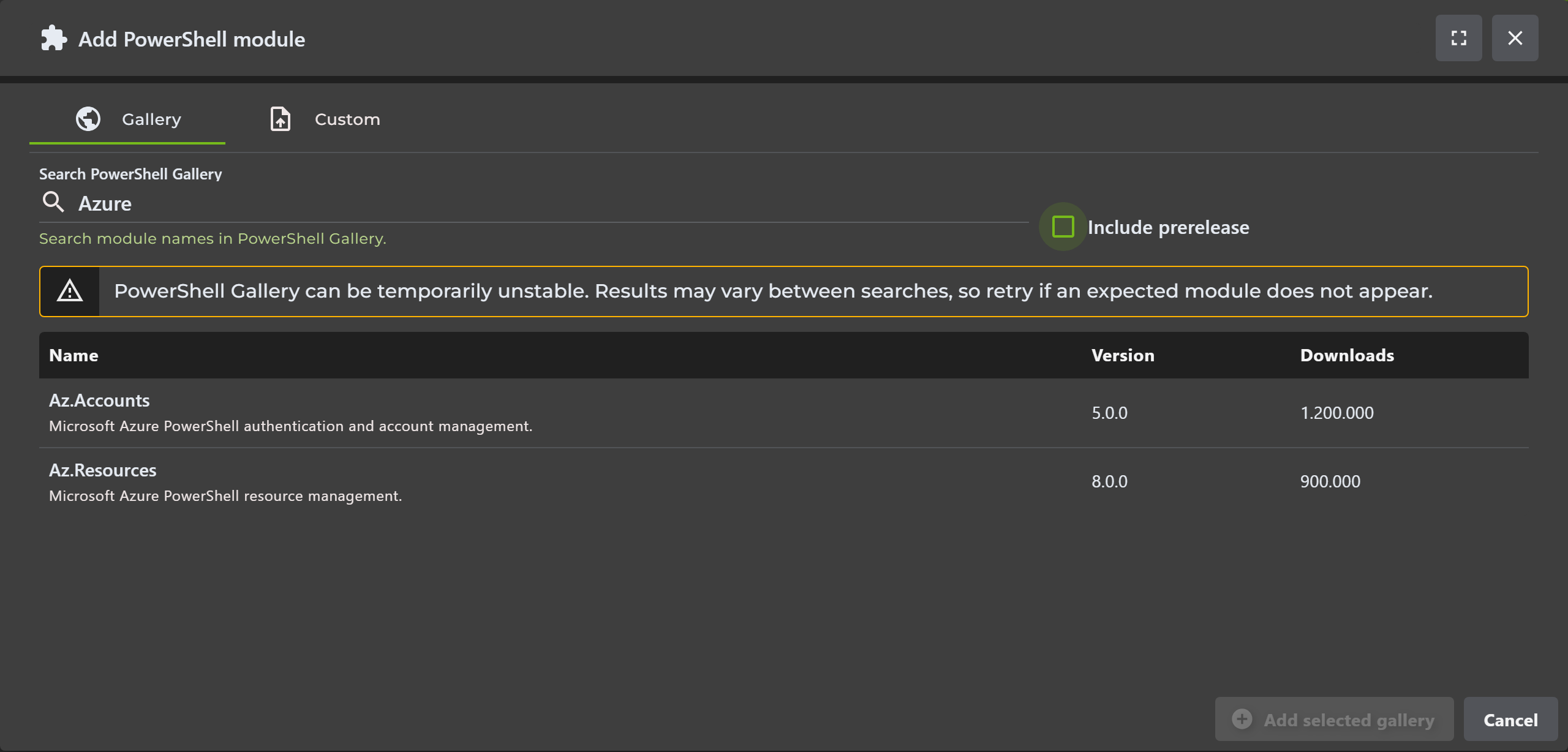
Gallery modules should be added by searching PowerShell Gallery instead of manually typing package metadata. This reduces naming mistakes and ensures the module record is created from the official package details.
1. Go to Operations > Automation > Modules.
2. Select Add module.
3. Open the Gallery tab and search for the module name or keyword.
4. Optionally include prerelease versions if your organization allows them.
5. Select the module result and add it to your module catalog.
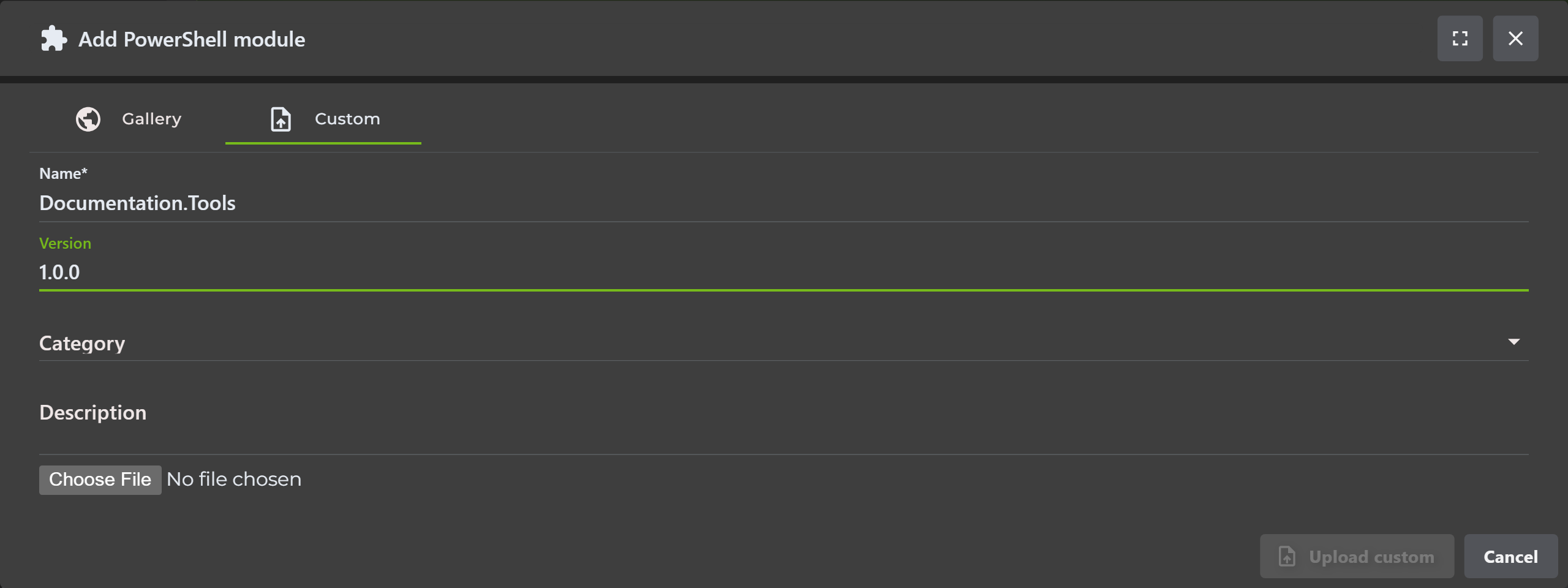
Upload a Custom Module
Custom modules are useful when you have internal PowerShell modules, private helper libraries, scripts that should not be published to PowerShell Gallery, or packages that must be pinned exactly as tested.
• The package should contain a valid PowerShell module layout with a module manifest (.psd1) or script module (.psm1).
• Include all required folders, nested modules, localization files, format files, and private/public function folders in the uploaded package.
• Use a clear semantic version such as 1.4.2 so assignments and logs are easy to understand.
• Add release notes that describe what changed, especially if scripts depend on changed cmdlets or parameters.
Versions and Update Policy
Each module can have one or more versions. Assignments can pin a specific version, or follow the module's latest version when automatic updates are enabled.
Pinned version:
Choose a specific version when you need predictable behavior. Agents keep that exact version synchronized until the assignment is changed.
Latest version:
Use latest-version sync when you want assigned agents to move forward automatically as the module catalog is updated.
Custom version upload:
Add a new version by uploading a new package. Existing pinned assignments stay on their selected version, while latest-version assignments move to the new latest version.
Gallery version update:
Add Gallery versions from Gallery search so the version, package source, project URL, repository URL, and metadata stay aligned with the official package.
Assign Sync Targets
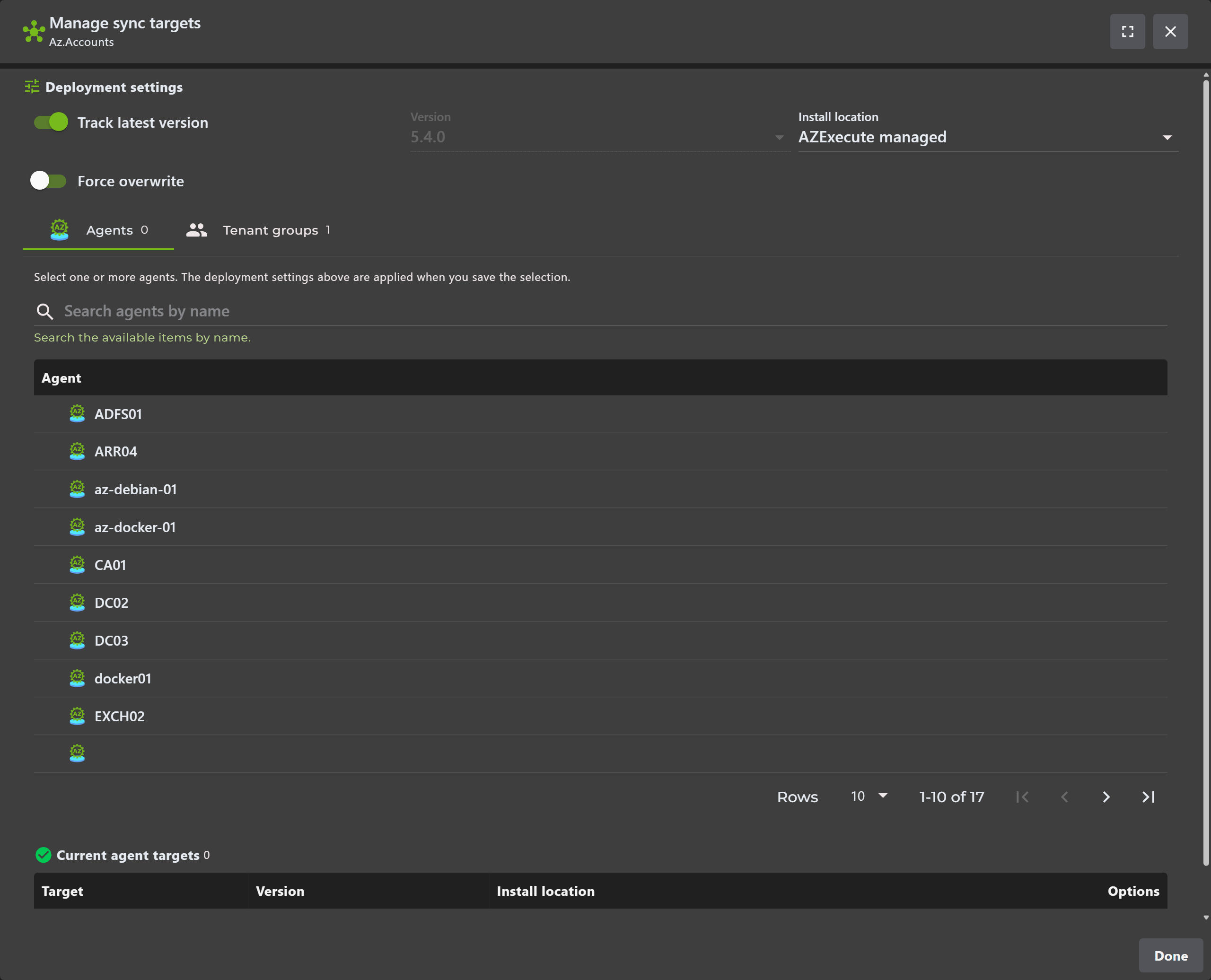
Sync targets define where a module should exist. A target can be a direct AZExecute agent or an agent group. Group assignments are the preferred way to manage large environments, while direct assignments are useful for exceptions, test machines, and specialist servers.
• Use Manage targets from the module row or expanded module details.
• Select one or more direct agents, agent groups, or both.
• Choose the version policy for the assignment: pinned version or latest version.
• Save the target list. Agents pick up their assigned module set during the next sync cycle.
How Agent Sync Works
AZExecute agents periodically ask the platform which modules are assigned to them. The result includes direct assignments and group assignments for the tenant and machine identity.
1. The agent requests its assigned module list from the AZExecute API.
2. The agent compares assigned modules with the AZExecute-managed modules already installed locally.
3. Missing or outdated assigned modules are downloaded.
4. Custom packages are downloaded from AZExecute and unpacked into the managed module location.
5. Gallery packages are resolved by name and version from PowerShell Gallery, then installed into the managed module location.
6. The agent reports sync state and detailed log events back to AZExecute.
7. Modules that are no longer assigned can be removed from the AZExecute-managed location without touching modules outside AZExecute ownership.
Monitoring Health and Logs
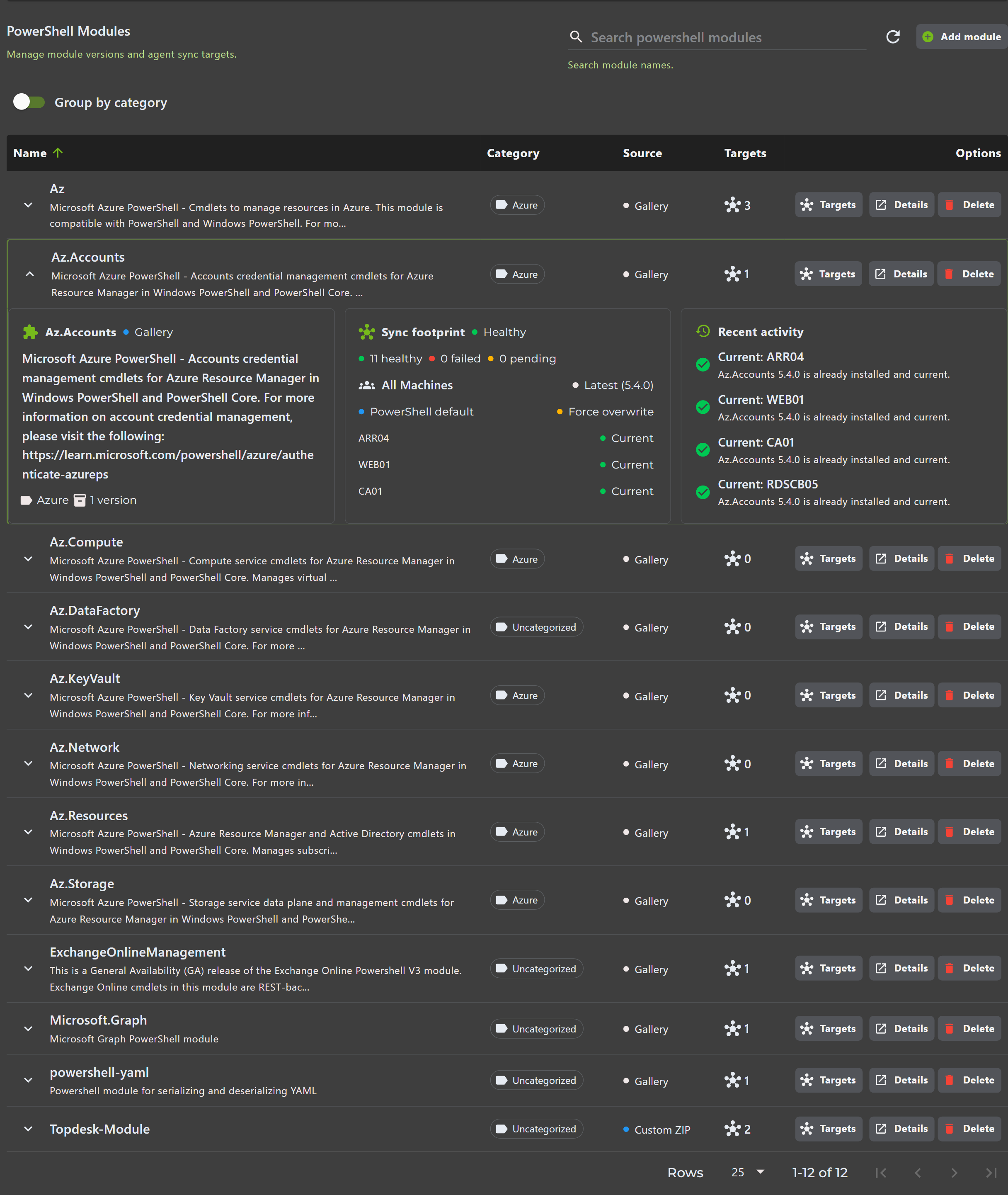
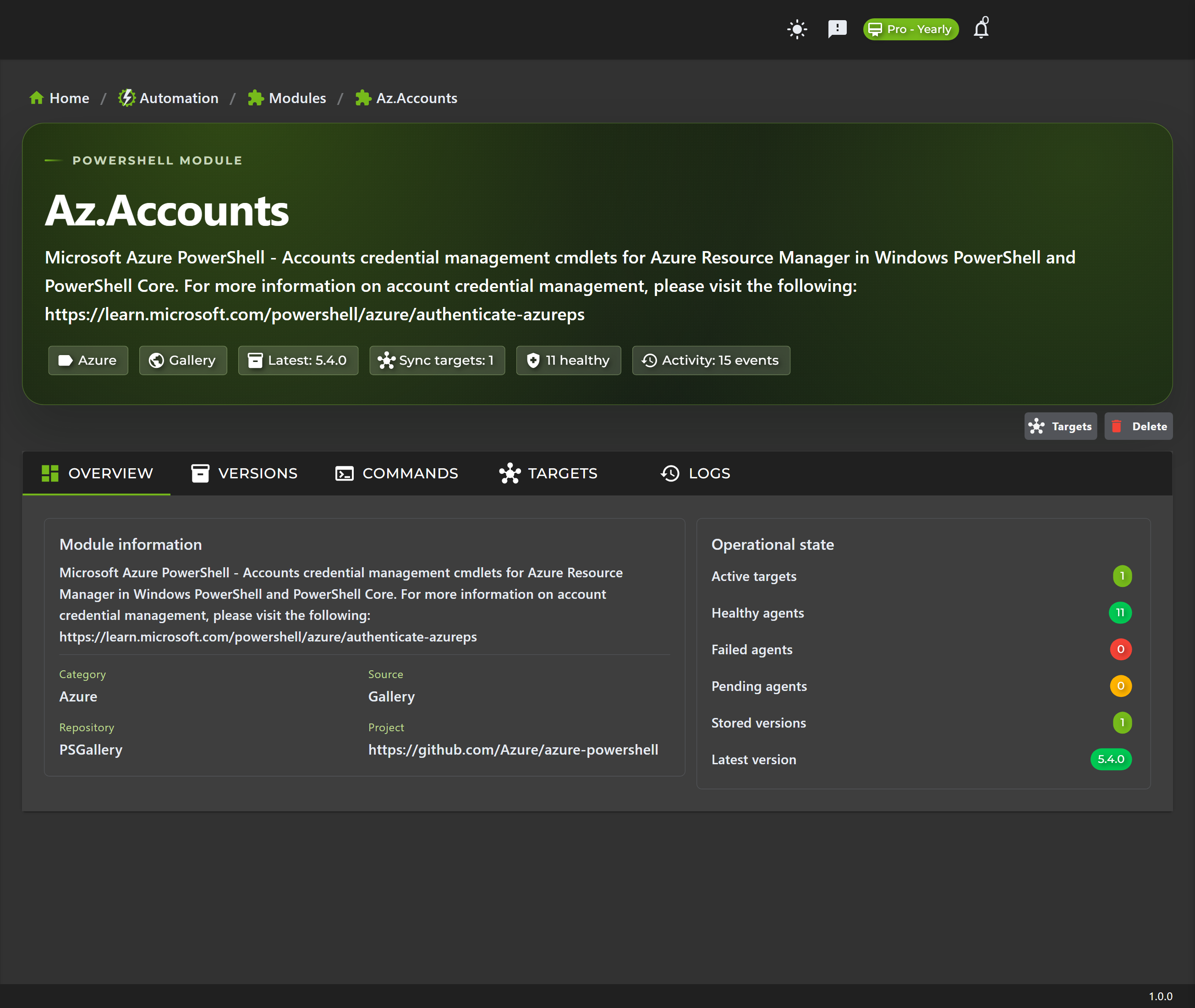
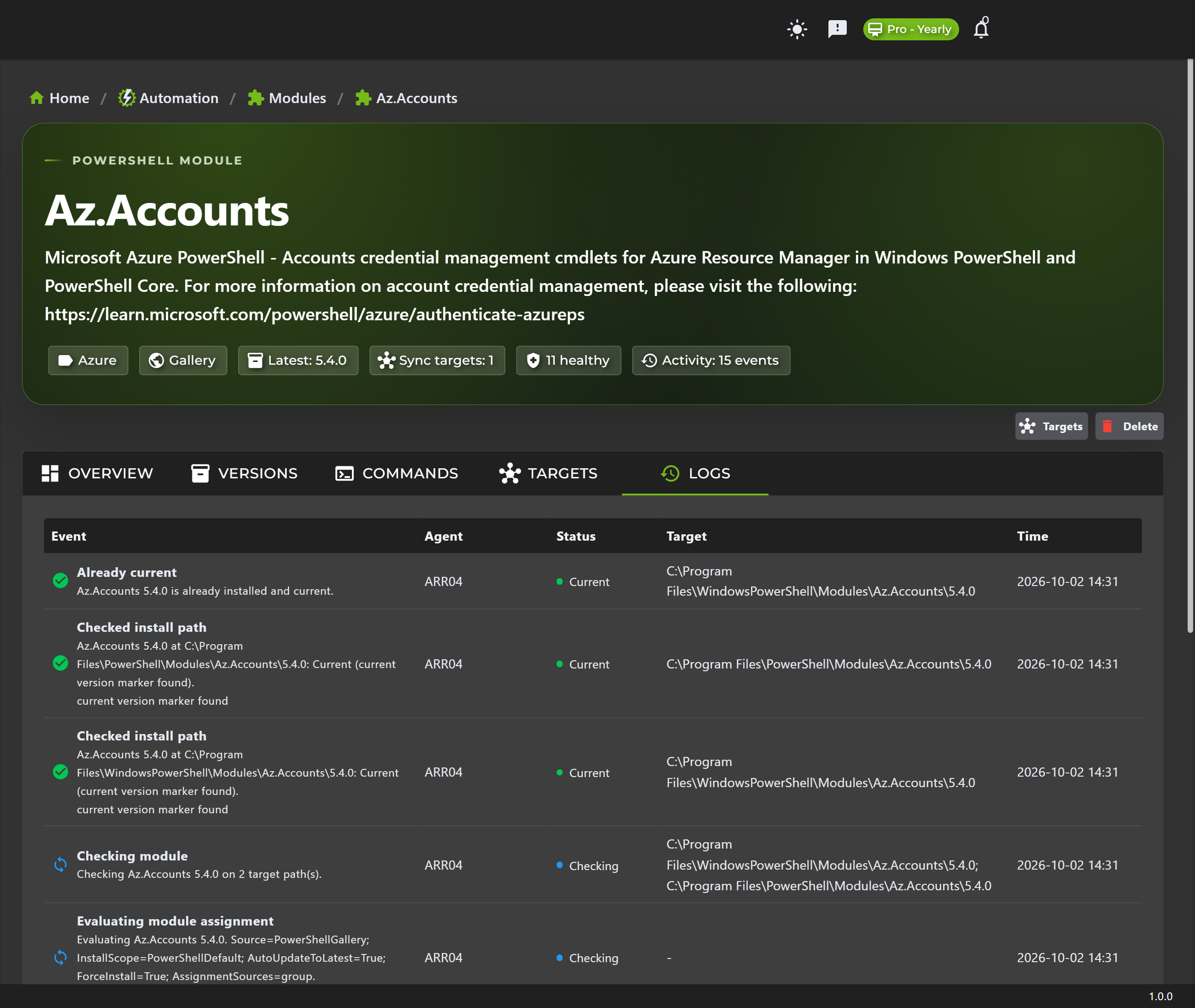
The module table, expanded module row, and module details page show the operational state of module synchronization. Use this information to answer three questions: which version should be installed, which agents are targeted, and what happened on the last sync attempt.
• Sync targets show how many direct agents or groups are assigned.
• Last reported status shows whether the agent is healthy, pending, failed, or has not reported yet.
• Last check time helps identify machines that are offline or unable to report sync progress.
• Agent logs show operations such as checking assignments, downloading packages, unpacking files, deleting old managed modules, skipping unavailable modules, and reporting failures.
Tenant Boundaries and Security
PowerShell Modules are tenant-owned automation assets. Tenants should only see, assign, download, and receive logs for their own module records and their own agents.
• Operators and TenantAdmins manage modules only inside their tenant context.
• Agents should only receive module assignments that apply to their machine identity and tenant.
• Custom package download endpoints must validate that the requesting agent is allowed to download the requested module version.
• Logs should be written with tenant context so another tenant cannot inspect package names, machine names, paths, or errors.
• Never place credentials or secrets inside module packages. Use secure automation credentials, Key Vault, or approved tenant secret stores.
Troubleshooting
Module is assigned but not installed
• Confirm the agent is online and reporting to AZExecute.
• Check whether the assignment is direct or inherited from an agent group.
• Review the module sync logs for download, extraction, PowerShell Gallery, or permission errors.
PowerShell Gallery module fails to download
• Verify the target machine can reach PowerShell Gallery and the required TLS settings are available.
• Confirm the requested version exists and is not prerelease unless prerelease usage is intended.
• Check whether the agent service account can write to the managed module path.
Custom module installs but Import-Module fails
• Confirm the package contains the expected manifest or script module file.
• Validate the module can be imported locally before uploading the package.
• Check the module folder name and manifest module name for mismatches.
An old module version remains on disk
• Confirm whether another assignment still references the old version.
• Check whether the previous sync cycle failed before cleanup completed.
• Only remove modules from the AZExecute-managed location. Do not delete modules that were installed manually outside AZExecute ownership.
Best Practices
• Organize modules into categories such as Identity, Certificates, Servers, Network, Applications, or Tenant Operations.
• Prefer group assignments for fleet-wide module rollout and direct assignments for exceptions.
• Test a new module version on a small agent group before assigning it broadly.
• Keep release notes specific so operators know which scripts may be affected.
• Pin critical production dependencies unless you have a clear operational reason to follow latest automatically.
• Monitor failed sync logs after large assignment changes, especially when rolling out to many agents at once.
Related Documentation
Scripts - Build script logic that imports synchronized modules.
Machines - Manage AZExecute agents and machine targets.
Automation Tasks - Use scripts and modules inside reusable workflows.
Execution & History - Review task execution output after module-backed scripts run.