
Importing Applications
Before AZExecute can manage an application's credentials and lifecycle, you need to import the Application Registration from Entra ID. This process establishes the connection between your Azure application and the AZExecute management system.
Automating Imports with REST or MCP
Application imports can be automated through the public API or MCP. Authenticate with an identity that has the required API role, discover the import operations in Swagger, and inspect the published request and response schemas before submitting an import.
Prerequisites
Before importing an application, ensure you have:
An existing Application Registration in Entra ID
Sufficient permissions to read the application (Application.Read.All or Application.ReadWrite.All)
The Application ID (Client ID) of the application you want to import
How to Import an Application
Follow these steps to import an application into AZExecute:
1
Navigate to the Applications page
Sign in and access the Applications section from the main navigation2
Click the Import button
Located in the toolbar at the top of the Applications list3
Search for your application
Enter the application name or Application ID in the search field4
Select from search results
Choose your application from the list of available applications5
Complete the import
Click Import Application to finish the process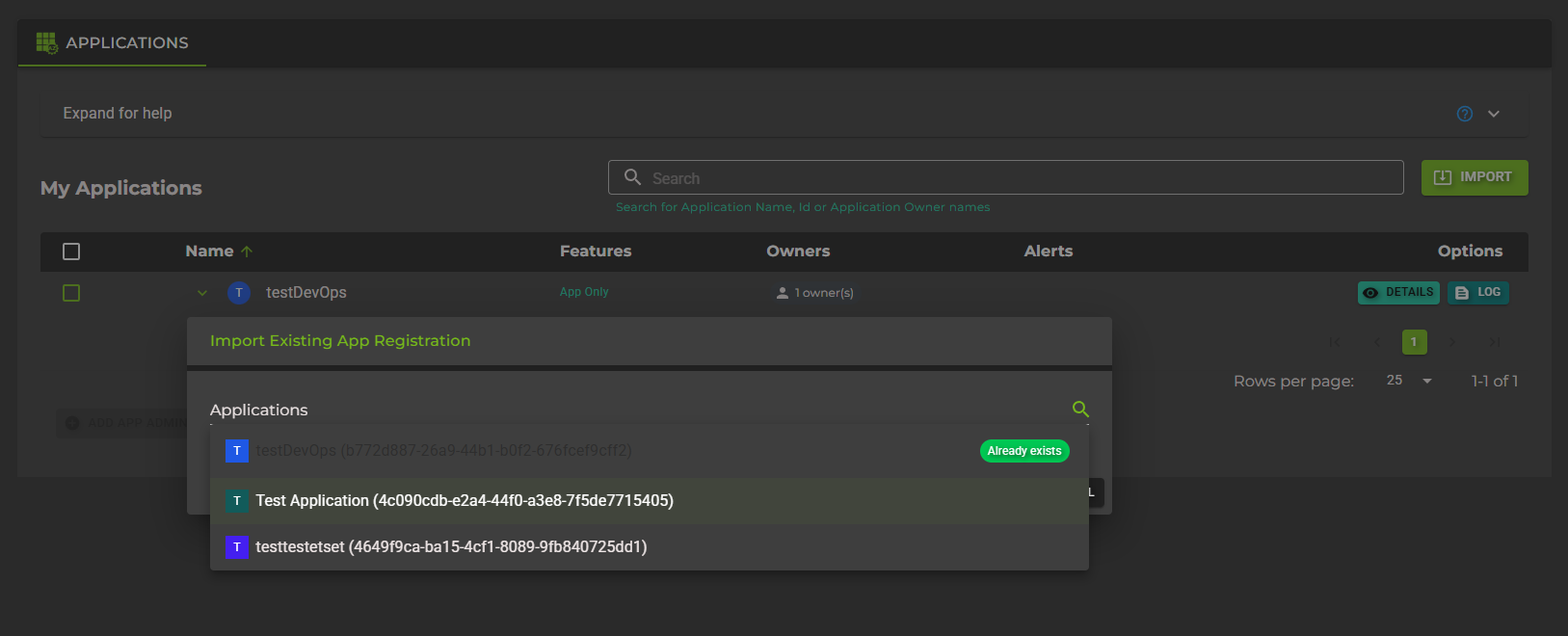
Understanding Application Discovery
When you search for applications to import, AZExecute queries Entra ID for Application Registrations you have access to. The search includes:
Application Display Name
Application ID (Client ID)
Object ID
Applications you own or have been added to as owners in Entra ID will appear first in search results.
What Happens During Import?
When an application is imported, AZExecute performs the following actions:
Retrieves application metadata
Display name, Application ID, Object ID, and other Entra ID propertiesLocates the Service Principal
Finds the enterprise application (service principal) in your tenantCreates management record
Stores the application in AZExecute database with default configurationSets initial state
Application starts in Active state with automation disabled until configuredAssigns you as owner
You automatically become the first owner with full management rightsAfter Importing
Once an application is successfully imported, you should:
1.
Add additional owners
Navigate to the General tab to add other users who should manage this application2.
Configure secret rotation if needed
Set up automatic client secret rotation with your desired schedule and integrations3.
Enable certificate management if needed
Generate or import certificates and configure automatic renewal4.
Set up integrations
Connect to Key Vault, DevOps, Vercel, or other services for automatic credential deploymentNext Steps:
Troubleshooting Import Issues
Application Not Found in Search
If you can't find your application when searching:
• Verify you have read permissions for the Application Registration in Entra ID
• Ensure the application exists in the same tenant you're signed into
• Try searching by Application ID instead of name
• Contact your Entra ID administrator to grant necessary permissions
Service Principal Missing
If the import fails because the Service Principal doesn't exist:
• The application might not have been instantiated in your tenant yet
• Go to Azure Portal and create the enterprise application (service principal)
• Alternatively, grant consent to the application to auto-create the service principal
Application Already Imported
If you see an error that the application is already managed:
• Check if the application appears in your Applications list
• It may have been imported by another user
• Request owner access from the current owners