
Stored Scripts
Stored Scripts are reusable scripts that can be executed as part of automation tasks in AZExecute. This guide explains how to create, manage, and use PowerShell and Bash scripts in your automation workflows.
What are Stored Scripts?
Stored Scripts are scripts that you create and save in AZExecute for reuse across multiple automation tasks. Instead of embedding script logic directly in tasks, you maintain scripts centrally and reference them by name.

Creating Stored Scripts
To create a new stored script:
Step 1: Navigate to Scripts
From the main menu, go to Operations > Automation and open the Scripts tab.
Step 2: Create New Script
Click the Add Script button to open the script editor.
Step 3: Configure Script Properties
Provide the following information:
Name:
A descriptive name for the script. This name is used when selecting scripts in automation tasks.
Description:
Optional description explaining what the script does and when to use it.
Script Content:
The script code to execute. Use the built-in editor with syntax highlighting.

Step 4: Define Script Parameters (Optional)
If your script uses parameters, define them using standard PowerShell param block syntax:
param(
    [Parameter(Mandatory=$true)]
    [string]$ServerName,

    [Parameter(Mandatory=$false)]
    [int]$Port = 8080,

    [switch]$Force
)

# Script logic here
Write-Host "Connecting to $ServerName on port $Port"
Step 5: Save the Script
Click Save to store the script. It's now available for use in automation tasks.
Importing and Synchronizing Scripts from Git
A Git repository can be the source of truth for stored PowerShell and Bash scripts. AZExecute can import .ps1 and .sh files from GitHub or Azure DevOps, keep their repository metadata, and synchronize them again manually or on a reusable schedule.
Available Git Sources
GitHub integrations
The GitHub selector shows every enabled GitHub App integration for the tenant. If several integrations are enabled, choose the installation that has access to the required repository.
• The GitHub App must be installed for the repository.
• Grant the app Metadata: Read-only and Contents: Read-only.
• Disabled integrations are not offered and cannot be used for synchronization.
Azure DevOps Git repositories
Select an Azure DevOps organization, project, Git repository, and branch. The signed-in user's Azure DevOps access is used to discover available organizations during configuration.
• Complete the normal Azure DevOps tenant integration setup first.
• Add the AZExecute enterprise application to the organization.
• Grant it read access to the selected project and repositories. Scheduled synchronization uses this application identity and does not require a user to remain signed in.
Import and Synchronize Now
1. Open Operations > Automation > Stored Scripts and select Import from Git.
2. Choose GitHub or Azure DevOps. Then select the integration or organization, repository, and branch.
3. Optionally enter a Path prefix, such as automation/scripts/, to limit discovery to one repository folder. Leave it empty to scan the complete repository tree.
4. Select Preview to inspect the matching file paths, sizes, and blob identifiers before anything is imported. Preview scans the Git tree without downloading every script body.
5. Select Sync now. The result separates files into created, updated, unchanged, and skipped states and shows the relevant commit where available.
What synchronization changes
New file: creates a stored PowerShell or Bash script according to its extension. Its name is taken from the file name without .ps1 or .sh.
Changed file: updates the stored content, creates a new script version when the content changed, refreshes Git metadata, and detects PowerShell or Bash parameters again.
Unchanged file: remains untouched; its synchronization status is refreshed without downloading or versioning the content again.
Missing file: is not automatically deleted. The existing script is retained and marked with a synchronization message stating that the file was not found.
Skipped or failed file: keeps the existing script, if one exists, and records the reason. A single script file can be up to 1 MiB, and one repository synchronization processes up to 500 matching files.
Link a Schedule to the Git Synchronization
A schedule repeats the same synchronization selection automatically: provider, integration or Azure DevOps project, repository, branch, optional path prefix, and processing limits.
1. Create the reusable recurrence under Operations > Schedules if the required schedule does not already exist.
2. Return to Import from Git and configure the provider, repository, branch, and optional path prefix.
3. Enable Link sync schedule and select one of the existing reusable schedules.
4. Select Sync now. AZExecute performs the immediate synchronization first and saves the schedule link after that synchronization succeeds.
5. Review the schedule in Operations > Schedules. Its linked workloads show a Git sync entry for each attached repository synchronization.
Working with a Git-Synchronized Script
Git-synchronized scripts are read-only in AZExecute so the repository remains authoritative. The script details show the provider, repository, branch, file path, latest commit information, last synchronization time, and any synchronization error.
Use Sync on an individual Git-synchronized script to refresh only that file from its recorded source.
Make changes in Git and synchronize again when the repository should remain the source of truth.
Use Local Copy when the script must be edited directly in AZExecute. This permanently removes its Git source metadata; later repository synchronizations will no longer update that local copy.
Using Scripts in Automation Tasks
Stored scripts can be used in several automation task step types:
PowerShell Script Steps
Execute scripts on machines running AZExecute agents:
1. Add a PowerShell Script step to your automation task
2. Select the stored script from the dropdown
3. Choose the target machine (AZExecute agent)
4. Select PowerShell version (5.1 or 7+)
5. Provide parameter values if the script has parameters
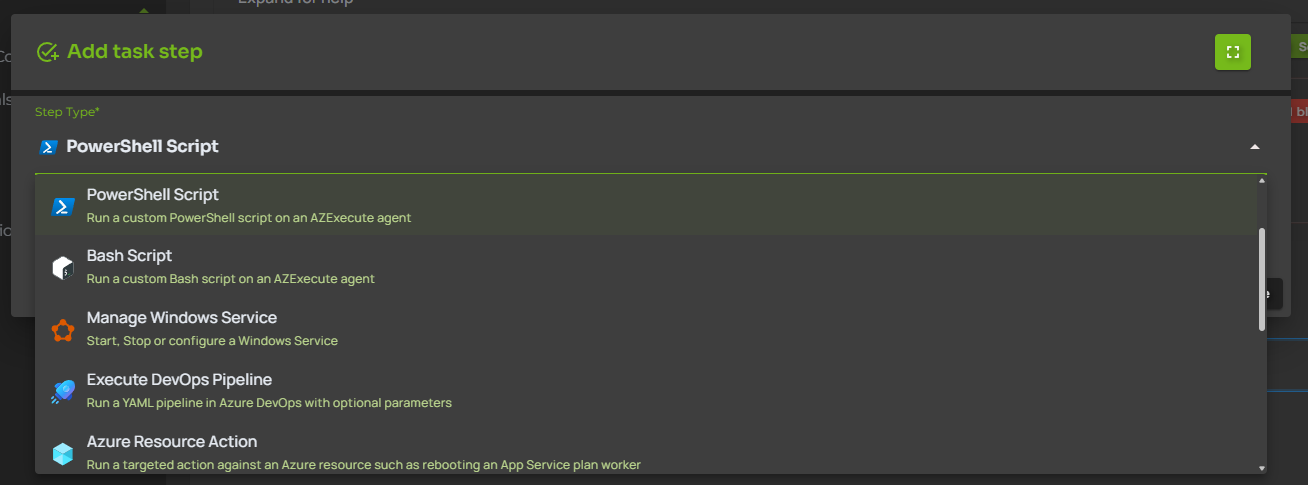


Bash Script Steps
Execute Bash scripts on machines running compatible AZExecute agents:
1. Add a Bash Script step to your automation task
2. Select the stored Bash script from the dropdown
3. Choose the target machine
4. Provide parameter values if the script has parameters
High-Value Integration Steps
Many automation tasks do not need a custom script at all. Use built-in integration steps when the workflow should perform a governed action against a known system:

Active Directory Action: create or update on-premises users and groups through a connected AZExecute agent.
Windows DNS: create, update, or delete internal DNS zones and records through an agent that can reach Windows DNS.

Public DNS providers: update external DNS records through integrations such as Simply.com DNS.

TOPdesk Incident: create, update, assign, or close incidents and pass incident IDs to later task steps.
SCOM Maintenance Mode: start or stop maintenance mode around planned operational work.


Azure Resource Action and DevOps Pipeline: operate on Azure resources or trigger standardized deployment pipelines from the same task run.

Script Parameters and Custom Parameters
When a script has parameters, you can provide values in several ways:
Static Values
Enter a fixed value directly in the step configuration. This value will be the same every time the task runs.

Global Variables
Reference variables created by earlier steps using {{"VariableName"}} syntax. This enables dynamic workflows where later scripts use output from earlier ones.

Custom Parameters
Link custom parameters to the automation task. When the task is executed, users are prompted to provide values for these parameters:
1. Create a custom parameter with a name matching your script parameter
2. Link the custom parameter to the automation task
3. AZExecute automatically maps the custom parameter to the script parameter
4. When users execute the task, they provide the value

Script Module Dependencies
If a stored script uses Import-Module or calls cmdlets from a shared module, manage that dependency in PowerShell Modules.
This keeps scripts focused on business logic and lets agents synchronize the required module versions before execution.
• Add official dependencies by searching PowerShell Gallery from the Modules dialog.
• Upload custom ZIP packages for internal modules with many files, folders, manifests, or nested assets.
• Assign required modules to the same agent or agent group that will run the script.
• Pin versions for production-critical scripts, or use latest-version sync when automatic module updates are intended.
Script Versioning and Updates
When you modify a stored script, the changes affect all automation tasks that use it:
Immediate Effect:
Changes to script content take effect immediately. The next task execution uses the updated script.
No Versioning:
AZExecute doesn't maintain script version history. Consider using external source control for your scripts.
Parameter Changes:
If you add or remove parameters, existing automation tasks may need to be updated to provide the new parameters or remove references to deleted ones.
Best Practices for Writing Scripts
Use Parameters Instead of Hard-Coded Values:
Make scripts reusable by accepting parameters for things like server names, file paths, and configuration values.
Include Error Handling:
Use try-catch blocks to handle errors gracefully. Provide meaningful error messages that will appear in execution history.
Write Informative Output:
Use Write-Host or Write-Output to provide progress updates. This output appears in execution history and helps with troubleshooting.
Validate Input:
Check parameter values at the start of your script. Fail fast with clear error messages if inputs are invalid.
Set Global Variables When Needed:
If your script produces output that later steps need, create runtime variables using the ::azx-set-var:Name=Value format. These marker lines are captured as variables and removed from the visible output stored in history.
The name is everything between ::azx-set-var: and the first =; the value is everything after it. Names can contain spaces and punctuation, but not = or line breaks.
Keep Scripts Focused:
Create scripts that do one thing well rather than monolithic scripts that do everything. This improves reusability and troubleshooting.
Use Comments:
Document your script logic with comments. This helps other operators understand what the script does when they use it in tasks.
Test Independently:
Before using a script in an automation task, test it independently on target systems to verify it works correctly.
Example: Well-Structured Script
#Requires -Version 5.1

param(
    [Parameter(Mandatory=$true)]
    [ValidateNotNullOrEmpty()]
    [string]$ServiceName,

    [Parameter(Mandatory=$false)]
    [int]$TimeoutSeconds = 30
)

$ErrorActionPreference = "Stop"

try {
    Write-Host "Checking service: $ServiceName"

    # Validate service exists
    $service = Get-Service -Name $ServiceName -ErrorAction Stop

    if ($service.Status -eq "Running") {
        Write-Host "Service is already running"
        exit 0
    }

    Write-Host "Starting service..."
    Start-Service -Name $ServiceName

    # Wait for service to start
    $service.WaitForStatus("Running", [TimeSpan]::FromSeconds($TimeoutSeconds))

    Write-Host "Service started successfully"

    # Export service status as global variable
    Write-Host "::azx-set-var:ServiceStatus=Running"
    Write-Output "::azx-set-var:Service Display Name=$($service.DisplayName)"
}
catch {
    Write-Error "Failed to start service $ServiceName: $($_.Exception.Message)"
    exit 1
}
Managing Scripts
The Scripts page provides tools for managing your stored scripts:
Search and Filter:
Find scripts by name or description using the search box. Filter by categories if your organization uses script categorization.
Edit Scripts:
Click the Edit button to modify script content, parameters, or properties. Changes take effect immediately.
View Usage:
See which automation tasks use each script. This helps understand the impact of changes before you make them.
Delete Scripts:
Remove scripts that are no longer needed. AZExecute warns you if any automation tasks reference the script before deletion.

Script Security Considerations
Access Control:
Only Operators and TenantAdmins can create or modify stored scripts. This prevents unauthorized changes to automation logic.
Avoid Hard-Coded Credentials:
Never store credentials directly in scripts. Use Azure Key Vault, Automation Account credential assets, or parameter-based credential passing.
Input Validation:
Always validate and sanitize parameters to prevent injection attacks or unintended behavior.
Principle of Least Privilege:
Scripts execute with the permissions of the AZExecute agent service account. Ensure these accounts have only the necessary permissions.
Audit Changes:
Keep track of who modifies scripts and when. Consider using external source control for audit trails and rollback capabilities.
Troubleshooting Script Issues
Script Execution Fails
Common causes and solutions:
• Syntax Errors: Test scripts in the correct shell environment before saving them
• Missing Modules or Tools: Ensure required modules, packages, or command-line tools are installed on target systems
• Permission Issues: Verify the agent service account has necessary permissions
• Path Problems: Use absolute paths or verify working directory assumptions
Parameters Not Working
If parameters aren't being passed correctly:
• Check that parameter names in the script exactly match those provided in the step configuration
• Verify parameter types match what the script expects (string, int, bool, etc.)
• Ensure mandatory parameters are provided in the automation task step
Script Not Appearing in Dropdown
If a script doesn't appear when adding a step:
• Verify the script was saved successfully
• Check that you have permissions to view the script
• Try refreshing the page or clearing your browser cache
Script Organization Tips
Use Naming Conventions:
Adopt a consistent naming scheme for scripts, such as prefixing by category (e.g., "IIS-RestartAppPool", "SQL-BackupDatabase", "Cert-InstallCertificate").
Write Detailed Descriptions:
Include information about prerequisites, expected parameters, and what the script does. This helps other operators use scripts correctly.
Create Script Libraries:
Build a collection of reusable scripts for common tasks. This accelerates automation task creation and ensures consistency.
Document Dependencies:
Note in the description if a script requires specific PowerShell modules, Windows features, or other prerequisites. Link those modules to the relevant agents or groups in PowerShell Modules.
Regular Review:
Periodically review stored scripts to remove obsolete ones and update others with improvements or bug fixes.