
Permission Request System
The Permission Request system in AZExecute provides a formal approval workflow for managing internal API access, external API permissions, app roles, delegated scopes, and pre-authorized client access. It gives requesters a clear way to ask for access and gives owners and administrators an audit trail for approval decisions.
Automating Permission Requests with REST or MCP
REST clients and AI agents can use the same governed workflow for both internal and external API permissions. Authenticate with the required API role, use Swagger or MCP operation discovery to inspect the current contract, and always select permissions returned by the discovery operations instead of guessing identifiers.
Open API Swagger for the supported permission discovery, request, and review operations.
Why Use Permission Requests?
Permission requests solve several common challenges in application permission management:
Security Governance: API owners review and approve permission requests before granting access
Audit Trail: Complete history of who requested what access and when it was granted or denied
Justification Required: Requesters must explain why they need access, aiding in security decisions
Automated Notifications: Application owners are notified of pending requests via email
Reduced Admin Burden: Distributes permission management to application owners instead of central IT
Permission Requests from Application Requests
Permission Requests can be created directly by an application owner, or they can be created from API permissions included in an Application Request. This keeps API access review consistent no matter how the application was requested and prevents application creation from automatically granting unrelated API access.
• Internal API permissions are reviewed by the owners of the target application
• External API permissions are reviewed by an administrator and may require Entra ID consent
• Each request keeps its own justification, approval state, and audit history
• If the application request itself is created without approval, the related Permission Requests still remain pending until the right approver handles them
Permission Target Model
A Permission Request always has a source application, a target API, and a grant type. The target determines who reviews the request and whether Entra ID consent may be required.
Internal APIs
• The target is another application managed in AZExecute
• The target application owners review whether the source application should receive access
• After approval, AZExecute applies the access where tenant setup and Entra ID permissions allow it
External APIs
• The target is an API outside the managed application list, such as Microsoft Graph or another public service principal
• Administrators review these requests because external APIs often require tenant-wide consent or elevated Entra ID permissions
• When external API permission approval applies an Azure change in the approving administrator's context, that administrator needs the required Entra ID role and consent permissions
Pre-Authorized Client Access
• Pre-authorization is intended for trusted client applications and internal API ownership scenarios
• Approvers should only approve it when the source application is trusted to bypass normal user consent prompts for the selected scopes
Request Types
The system supports three types of permission requests, each serving different access scenarios:
Application Permissions (App Roles)
Request application-level permissions that allow your app to act without a signed-in user.
Use When: Your background service needs to access an API automatically
Example: Requesting "User.Read.All" to synchronize user data from Microsoft Graph
Grant Process: After approval, AZExecute applies the permission where possible. Admin consent may still be required in Entra ID.
Delegated Permissions (OAuth2 Scopes)
Request delegated permissions that allow your app to act on behalf of signed-in users.
Use When: Your web or mobile app needs to access APIs while users are signed in
Example: Requesting "Mail.Send" to send emails on behalf of the signed-in user
Grant Process: After approval, AZExecute applies the delegated scope where possible. User or admin consent may still be required depending on the permission.
Pre-Authorized Client Access
Request to be added as a pre-authorized (trusted) client for specific API scopes.
Use When: You want to eliminate consent prompts for users accessing your API
Example: Requesting pre-authorization for "access_as_user" scope in a related first-party app
Grant Process: After approval, pre-authorization is configured in Entra ID
Target Model: Use for trusted internal or first-party API scenarios where the API owner controls the exposed scopes
Creating a Permission Request
To request permissions for your application:
1. Navigate to your application's details page
2. Go to the Requests tab
3. Click Request Permission button
4. The request creation dialog opens

Request Creation Steps
Step 1: Select Target Application
• Search for the API application you need access to
• Use the autocomplete to filter by application name or ID
• Select the application from the dropdown
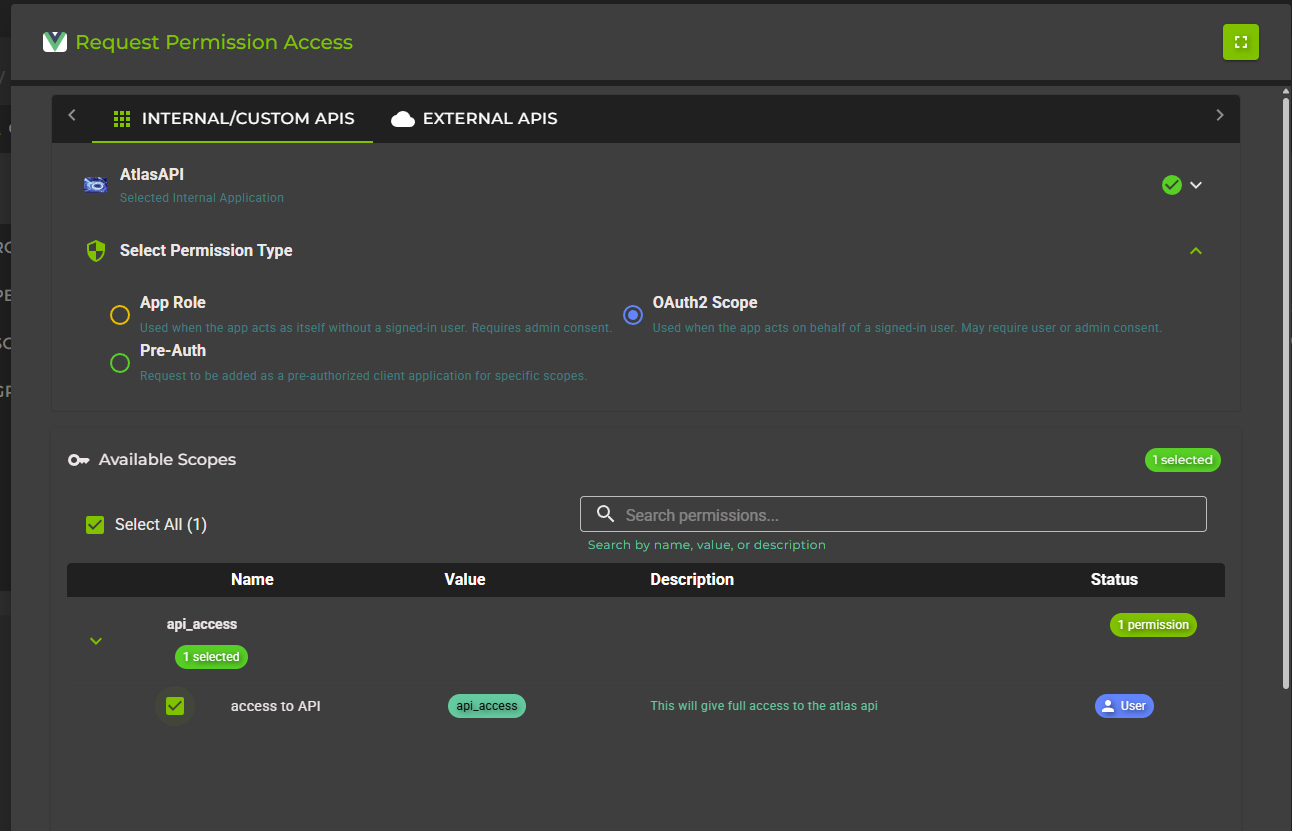
Step 2: Choose Permission Type
• Application Permission: For background services and daemon apps
• Delegated Permission: For user-interactive applications
• Authorized Client: To be pre-authorized for specific scopes
Step 3: Select Specific Permissions
The system displays available permissions based on your selection:
• Browse the list of available permissions
• Use "Select All" to request multiple permissions at once
• Already-granted permissions are shown as disabled with status indicator
• Select only the permissions you actually need (principle of least privilege)
Step 4: Provide Justification
• Explain why you need these permissions (required field)
• Be specific about the use case and business requirement
• Good justification helps approvers make informed decisions
• Maximum 500 characters
Step 5: Review and Submit
• Review the request summary showing all selected permissions
• Verify the target application is correct
• Click Submit Request to send for approval
• Requests are created immediately and owners are notified

Managing Outgoing Requests
The Outgoing tab shows all permission requests your application has made to other applications:
Viewing Outgoing Requests
1. Navigate to the Requests tab
2. Ensure Outgoing sub-tab is selected
3. View all requests grouped by target application
4. Filter by status (Pending, Approved, Denied)

Request Information Displayed
Target Application: Which API you're requesting access to
Permission Details: Name and value of requested permission
Grant Type: Application, Delegated, or Authorized Client
Request Date: When you submitted the request
Status: Pending, Approved, or Denied
Justification: Your explanation for needing the permission
Status Meanings
Pending
Waiting for target application owner to review and approve/denyApproved
Owner approved the request - you may still need to grant consent in Entra IDDenied
Owner denied the request - review denial reason and possibly resubmit with better justificationManaging Incoming Requests
If you're an application owner, you'll receive permission requests from other applications that want to access your API or be pre-authorized:
Viewing Incoming Requests
1. Navigate to your application's Requests tab
2. Select the Incoming sub-tab
3. View requests from other applications
4. Pending requests are highlighted for your attention

Request Details
Each incoming request shows:
• Source Application: Which app is requesting access
• Requester: Who submitted the request (name and email)
• Permission Requested: Specific permission name and description
• Grant Type: Application, Delegated, or Pre-Authorization
• Justification: Why they need this access
• Request Date: When it was submitted
Reviewing and Approving Requests
To process a pending request:
1. Click on the request to expand details
2. Review the justification and assess if access is appropriate
3. Consider the principle of least privilege - is this the minimum permission needed?
4. Click Approve to grant the request
5. For pre-authorization requests, approval automatically configures Entra ID
6. For application or delegated permissions, AZExecute applies the access where possible; user or administrator consent may still be required depending on the API and permission
7. For external API permissions, verify that the approving administrator has the required Entra ID role before approval

Denying Requests
If you need to deny a request:
1. Click Deny on the request
2. Provide a reason for denial (helpful for the requester)
3. Consider suggesting an alternative permission if appropriate
4. Requester is notified of the denial and your reason
Notifications
The permission request system sends automated email notifications to keep all parties informed:
When Notifications are Sent
Request Submitted
Target application owners receive notification of new permission requestRequest Approved
Requester receives confirmation with next steps (if consent required)Request Denied
Requester receives notification with denial reasonNotification Content
Email notifications include:
• Application names (source and target)
• Requested permission details
• Justification provided
• Direct link to review or view request in AZExecute
• Next steps (for approvals)
After Approval: Applying Access
After a Permission Request is approved, AZExecute applies the requested access where the request type and tenant setup allow it. Some permissions, especially external API permissions, may require Entra ID consent before the access can be used.
For Application Permissions
1. The requested app role is added to the source application where possible
2. External APIs may require administrator consent in Entra ID
3. The approving administrator should have the required Entra ID role and consent permissions
4. If consent is not completed during approval, complete the consent step in Entra ID
5. If the Azure change fails because of missing administrator permissions, activate the required Entra ID role and retry the approval or consent step
For Delegated Permissions
1. The requested delegated scope is added to the source application where possible
2. User or administrator consent may still be required depending on the scope
3. If administrator consent is required, the approving administrator must have the right Entra ID permissions
For Pre-Authorized Clients
• No additional steps needed
• AZExecute automatically configures pre-authorization in Entra ID
• Client application can immediately access the scopes without consent prompts
Best Practices
For Requesters
Request only what you need
Follow principle of least privilege - don't request broad permissions when narrow ones will workProvide detailed justification
Explain specific use case, not just "needed for application to work"Choose correct permission type
Use delegated permissions when users are involved, application permissions only for background servicesContact API owners if denied
Discuss concerns and possibly request alternative permissionsFor Approvers
Review requests promptly
Pending requests block development work - try to respond within 24-48 hoursVerify justification makes sense
If unclear, ask requester for more details before approvingBe cautious with application permissions
These grant broad access without user context - ensure they're truly necessaryOnly pre-authorize trusted applications
Pre-authorization bypasses consent - use only for first-party apps you controlProvide helpful denial reasons
Explain why denied and suggest alternatives if applicablePeriodically review granted permissions
Use the Grant Report to audit who has access and revoke if no longer needed