
Automated Secret Rotation
Client secrets (also known as application passwords) are credentials used by applications to authenticate with Entra ID. AZExecute automates the entire lifecycle of these secrets, from creation to rotation to deployment, ensuring your applications always have valid credentials without manual intervention.
Why Rotate Secrets?
Regular secret rotation is a security best practice that:
Limits exposure window: If a secret is compromised, it becomes invalid after the next rotation
Meets compliance requirements: Many security frameworks require periodic credential rotation
Reduces risk: Prevents long-lived credentials that become targets for attackers
Ensures continuity: Prevents authentication failures from expired secrets
Enabling Secret Rotation
To enable automated secret rotation for an application:
1. Navigate to your application's details page
2. Go to the Secrets tab
3. Enable the Secret Integration toggle
4. Configure rotation settings (lifetime, update threshold)
5. Optionally enable notifications and configure integrations
6. Click Save Changes to activate
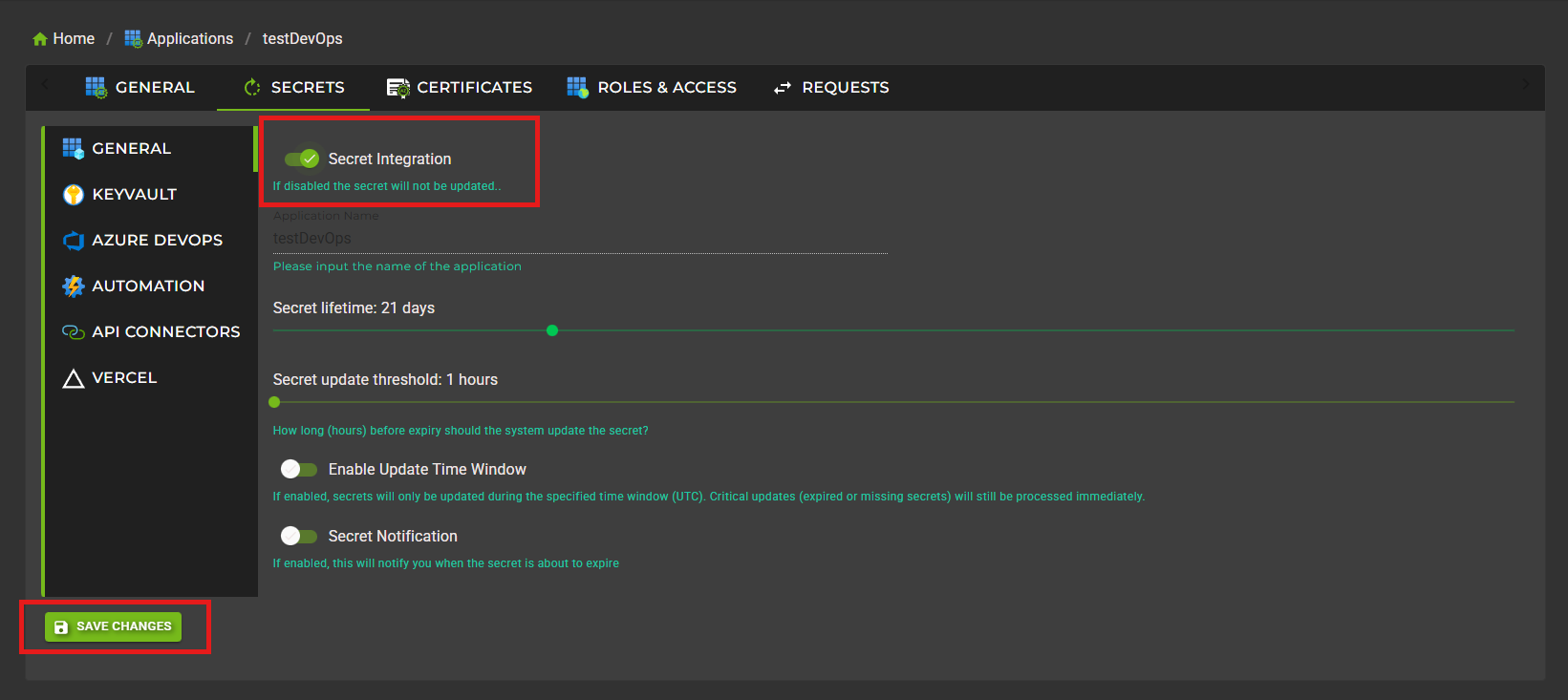
Configuration Options
Secret Lifetime
Define how long each secret remains valid before it needs to be rotated.
Range: 1 day to the tenant-configured maximum shown in the UI
Recommended: 21 days or shorter for production applications
Consideration: Shorter lifetimes increase security but require more frequent updates
Update Threshold
Specify how long before expiry the system should create a new secret (in hours).
Range: 1 to 24 hours
Recommended: 1 hour for most scenarios
Purpose: Provides buffer time to deploy new secrets before old ones expire
Optional Update Time Window (UTC)
You can optionally restrict automatic secret updates to a UTC time window. This is useful when you only want rotations during support hours.
• Enable Update Time Window in the secret configuration
• Set start and end time in UTC
• Windows can span midnight when start is later than end
Email Notifications
Configure email alerts to stay informed about secret lifecycle events:
Rotation notifications: Receive alerts when secrets are rotated
Threshold alerts: Get notified when rotation is approaching (configurable days before)

How Secret Rotation Works
Understanding the rotation process helps you plan your application's credential management:

Manual Secret Rotation
You can manually trigger secret rotation at any time without waiting for the scheduled rotation:
1. Navigate to the Applications list
2. Click the Refresh button for your application
3. Select Refresh Secret from the dialog
4. Confirm the operation
Common scenarios for manual rotation:
Secret compromise suspected - rotate immediately
Testing deployment pipelines and integration flows
Compliance audit requires immediate credential update
Integration Destinations
When a secret is rotated, it can be automatically deployed to multiple destinations. Each integration is configured separately on the Secrets tab:
 Azure Key Vault
Store secrets in Azure Key Vault for secure access by your applications:
• Select target Key Vault from your accessible vaults
• Define the secret name (defaults to application name)
• System automatically manages access policies or RBAC permissions
• Applications retrieve current secret using Key Vault SDK
 Azure DevOps Service Connections
Update Azure DevOps service connection credentials automatically:
• Select target Azure DevOps organization and project
• Choose which service connection to update
• Pipelines automatically use the new secret on next run
• No pipeline modifications needed
Vercel Environment Variables
Update serverless application environment variables in Vercel:
• Associate application with a Vercel-enabled group
• Select target Vercel project
• Specify environment variable name to update
• Choose target environments (production, preview, development)
• Optionally trigger automatic redeployment to apply changes immediately
GitHub Actions Secrets
Update GitHub Actions repository or environment secrets when Entra ID client secrets rotate:
• Configure a GitHub App installation integration in TenantAdmin
• Assign the GitHub integration to one of the application's groups
• Select the target repository, scope, optional environment, and Actions secret name on the application's Secrets tab
• AZExecute encrypts and writes the rotated value through the GitHub Actions secrets API
AWS Secrets Manager
Deploy rotated Entra ID secrets to AWS Secrets Manager for workloads running in AWS:
• Configure AWS integration credentials and target account access
• Select the target secret and key path to update on each rotation
• Rotated values are written to Secrets Manager and available to AWS workloads immediately
• Keep IAM permissions scoped to least privilege for update operations
 Logic App API Connections
Keep Logic App connector credentials current:
• Select target API Connection resource
• System updates the connection's service principal credentials
• Logic Apps continue functioning without reauthorization
Custom Automation Tasks
Trigger custom automation workflows when secrets rotate:
• Create automation tasks with PowerShell scripts or runbooks
• Link the task to secret rotation events
• Task receives the new secret as a parameter
• Deploy to custom locations or update application configurations
Monitoring and History
Track all secret rotation activities for audit and troubleshooting:
Application Log
View detailed logs of all rotation events:
• Click the Log button on your application
• See timestamp of each rotation
• Review which integrations were updated
• Check for errors or warnings
Secret Metadata
Each application displays key information about its secret status:
Last Updated: When the current secret was created
Next Update: When the next rotation will occur

Best Practices
Use appropriate secret lifetimes
90 days for production, shorter for high-security environmentsSet sufficient update thresholds
Allow at least 7 days for deployment and testing before old secret expiresAlways use integrations
Avoid manual secret deployment - let automation handle itTest rotation before production
Use manual rotation to verify your deployment pipeline works correctlyMonitor rotation logs regularly
Check for failures or issues that might cause future problemsConfigure notifications for critical applications
Stay informed about rotation events for production systemsUse Key Vault for secret storage
Centralize secret storage instead of hardcoding in application configurationTroubleshooting
Secret Not Rotating Automatically
If automatic rotation isn't occurring:
• Verify Secret Integration is enabled on the Secrets tab
• Check that the application state is Active
• Review application logs for errors during rotation attempts
• Ensure the update threshold window has been reached
Integration Deployment Failed
If secret is created but integration update fails:
• Check application log for specific error details
• For Key Vault: Verify access policies or RBAC permissions
• For DevOps: Check service connection still exists and PAT is valid
• For Vercel: Ensure group Vercel configuration is current
• For AWS: Validate Secrets Manager target, IAM permissions, and configured integration credentials
• Try manual rotation to isolate the issue
Application Authentication Failing After Rotation
If your application stops authenticating after rotation:
• Verify your application is retrieving the secret from the configured source (Key Vault, environment variables, etc.)
• Check that the application has been restarted or reloaded configuration
• Ensure the old secret hasn't been manually removed from Entra ID (should auto-expire)
• Review Entra ID sign-in logs for authentication error details